CQLinq-NDepend’s Code Query Linq
Recently I got the new version of NDepend. Thanks to Patrick Smacchia and team to build such a wonderful tool for the developers.
In one of my previous post I explained the features of NDepend and then after NDepend become the most important tool to make my code healthy and maintainable. One of the NDepend feature really knocked me out is CQL, query the code using SQL like syntax. That was a new experience to me, in my last post I wrote a CQL to find the dead functions in my application as shown below.
SELECT METHODS WHERE
MethodCa == 0 AND !IsPublic AND !IsEntryPoint AND !IsExplicitInterfaceImpl
AND !IsClassConstructor AND !IsFinalizer
Isn’t it cool if we can write these kind of queries in Linq. Yes we can, with the latest version of NDepend V4 we can write Linq queries to query our code and is called CQLinq. Let’s see how we can rewrite the above query using CQLinq.
from  m in JustMyCode.Methods where m.MethodsCalled.Count() ==0 && m.IsPublic==false
&& m.IsEntryPoint==false && m.IsExplicitInterfaceImpl==false &&
m.IsClassConstructor==false && m.IsFinalizer==false select m
How about the query writer supports intellisense and integratd tool tip documentation? Awesome… I love these guys. Previously I need to remember the keywords like IsEntryPoint/IsExplicitInterfaceImpl etc. Now intellisense will show all the methods and properties. Also tool tip help tells us what is the use of the selected method or property. Cool you don’t have to remember every thing, less work for brain 🙂
See the screen shot below.
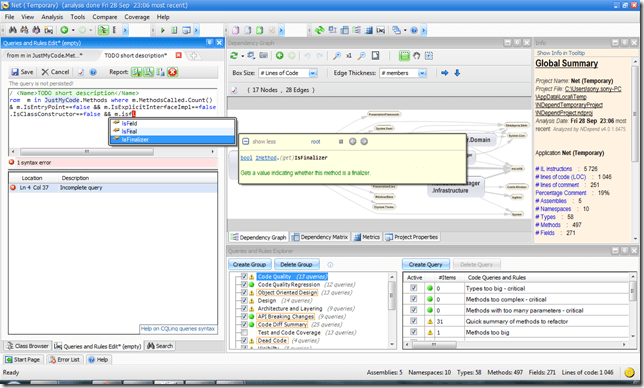

If we want to add our own rules and the UI want to show the warning symbol if the query returns value then add warnif as shown below.
// <Name>Dead Methods</Name>
warnif count > 0 from  m in JustMyCode.Methods where m.MethodsCalled.Count() ==0 && m.IsPublic==false
&& m.IsEntryPoint==false && m.IsExplicitInterfaceImpl==false &&
m.IsClassConstructor==false  select m
The Query and Rules explorer window will show the warning as shown below

I just covered very basic of NDepend’s CQLinq. You can find more detailed feature list of NDepend V4 and example CQLinq code from NDepend
DDPClient.NET–.NET client for Meteor’s Distributed Data Protocol
Last couple of hours I was working on a small .NET client library to connect to Meteor js application using Distributed Data Protocol (DDP). This post will give some insight to the library I am working on. You can see more details of DDP here.
Using DDPClient.NET you can subscribe to published items or call a Meteor method and display the same in your ASP.NET or Desktop applications.
First let’s go through the server code in my meteor application.
if(Meteor.is_server)
{
    Meteor.publish("allproducts", function(){
        return Products.find();
    });
    Meteor.startup(function(){
        console.log("starting Point of sale application.....");
      });

    Meteor.methods({
        addProduct: function (prodCode, prodDesc) {
            return "Product Name: " + prodDesc + " Product Code: " + prodCode;
        }
    });
}
From the Meteor application we are publishing an item called ‘allproducts’ and have a server method called ‘addProduct’ that takes two parameters. Now let’s see how to subscribe to published item and call the server method using DDPClient.NET.
Subscribe to Published items
class Program
{
    static void Main(string[] args)
    {
        IDataSubscriber subscriber = new Subscriber();
        DDPClient client = new DDPClient(subscriber);

        client.Connect("localhost:3000");
        client.Subscribe("allproducts");
    }

}
public class Subscriber:IDataSubscriber
{
    public void DataReceived(dynamic data)
    {
        try
        {
            if (data.type == "sub")
            {
                Console.WriteLine(data.prodCode + ": " + data.prodName +
                                         ": collection: " + data.collection);
            }
        }
        catch(Exception ex)
        {
            throw;
        }
    }
}
As you can see it’s very easy to connect to Meteor application using DDPClient.NET. Just call the Connection function with the url. Then call the subscribe function to subscribe to any published item in Meteor application.
In the above code I subscribed to ‘allproducts’ item. After you subscribed successfully to the meteor application, we will receive all the products stored in the db. Once our client is subscribed any insert/delete/update will streamed to the .NET client. You can test it by adding a some products via the web application and you can see the newly added product get displayed in the console.
How to call a Meteor Method?
class Program
{
    static void Main(string[] args)
    {
        IDataSubscriber subscriber = new Subscriber();
        DDPClient client = new DDPClient(subscriber);

        client.Connect("localhost:3000");
        client.Call("addProduct", "NS5", "IRobot");
        Console.ReadLine();
    }
}
public class Subscriber:IDataSubscriber
{
    public void DataReceived(dynamic data)
    {
        try
        {
            if (data.type == "method")
                Console.WriteLine(data.result);
        }
        catch(Exception ex)
        {
            throw;
        }
    }
}
As you can see the Meteor method ‘addProduct’ take two arguments prodCode and prodDesc. So when we call the method we have to pass the parameter as well. We can do that by invoking the ‘Call’ function with the method name and arguments as shown below.
client.Call(“addProduct”, “NS5”, “IRobot”);
Also you will get notification if any data get deleted from the database. You can check the same as shown below.
else if (data.type == "unset")
{
    Console.WriteLine("deleleted item with id: " + data.id);
}
so you will get the id of the data it deleted, you can search for the product with this id and remove or do what ever you wanted to do.
DDPClient.NET is checked into Github. The meteor code I referred here is added to the one I used in Getting Started with meteor.
Getting started with Meteor
This post is an introduction to Meteor and intended to developers who are new to Meteor.
So what is Meteor?
Meteor is an ultra-simple environment for building modern websites. What once took weeks, even with the best tools, now takes hours with Meteor.
Yes Meteor is a java script web framework that can do wonders with less line of code. Watch this Screen cast before you proceed. One of the feature that I really liked is the real time pushing of changed data set to all the connected clients in real time, without any complex code from developers.
Installing Meteor
I use Windows as my development environment, so we need to use the Meteor msi installer. We can get the latest installer from http://win.meteor.com/. Download the setup and install it. After installation we need to start CMD / Bash as administrator or reboot for it to catch the environment changes.
Developing Meteor App
Open the command prompt and change directory to your desired folder, say f:\sony\tracers\meteor. Then issue the create command as shown below.
>meteor create helloworld
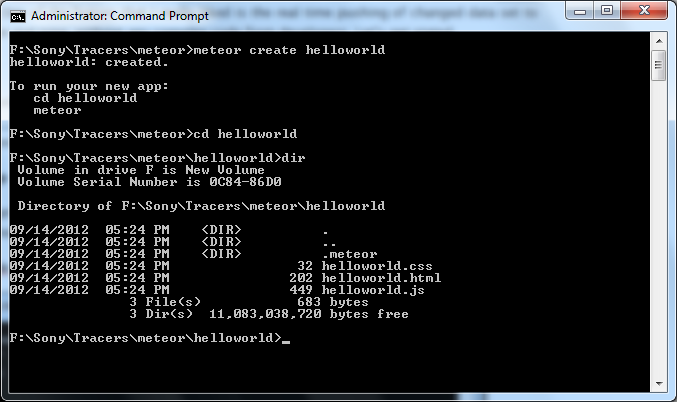
Here ‘helloworld’ is my application name. You can give any name for your application. The command creates a folder with the application name with a .meteor folder and sample html and js file. To check whether the application created correctly, type ‘meteor’ in the command prompt as shown below.

As you can see our application is running in localhost, we can fire any browser to that url and can see your first meteor app running. I am leaving the screen shot, see it your self.
Explore Meteor in Detail
It’s time to see some of the cool features of Meteor. I created a small application called pointofsale. Rest of the post will be around this application. It’s a small application I started in Meteor with below functionality.
-
Product Entry
-
Order entry
I completed only Product Entry and Listing.
Disclaimer: I am very bad in Web UI development, so you will see a very ugly UI
Folder Structure
You can find more details about file structuring here. My app’s folder structure is shown below

I use meteor Knockout as my MVVM framework.
Templates
Templates are like User controls in ASP.NET. That has set of controls and logic. Meteor has a nice documentation about Templates, check it out before you move on.
Let’s see the Product Entry Template to get some insight.
<template name="productEntry">
    <table>
        <tr>
            <td><Label >Product Code</Label></td>
            <td><label>Product Name</label></td>
        </tr>
        <tr>
            <td><input type="text" id="prodCode" data-bind="value: productCode" placeholder="Code"/></td>
            <td><input type="text" id="prodName" data-bind="value: productName" placeholder="Name"/></td>
            <td><input type="button" value="Add" id="addProduct"/></td>
        </tr>
    </table>
    <br>
</template>
As I said I use knockout js, so for data binding I added knock out attribute data-bind=”value: productCode” to input text.
Let’s see the java script of Product Entry.
if(Meteor.is_client)
{
  var productCode= ko.observable();
  var productName= ko.observable();

  var viewModel={
    productCode:productCode,
    productName:productName
  };

  Meteor.startup( function() {ko.applyBindings(viewModel); });

  Template.productEntry.events={
      "click #addProduct": function(){
            var id=Products.insert({prodCode:this.productCode(), prodName:this.productName()});
      }
  };

}
Meteor.is_client will return true if the code is running in client, based on this condition we can add client specific codes. As you can see, some of the code above are knockout specific and am not going in detail, except the event handling. You can learn knockout from http://learn.knockoutjs.com/.
Template.productEntry.events={
    "click #addProduct": function(){
          var id=Products.insert({prodCode:this.productCode(), prodName:this.productName()});
    }
};
The above code means, capture all the events in productEntry template. Right now productEntry template has only one button named addProduct and we need to handle the click event. That’s what we are doing in the above code. Leave the Products.Insert now, will come back to that later. So how do we handle a click event of another button, it’s very simple as shown below, just separate two functions with a comma.
Template.productEntry.events={     "click #addProduct": function(){         var id=Products.insert({prodCode:this.productCode(), prodName:this.productName()});     },     "click #showAlert": function(){         alert ("Hellow world");     }
};
Meteor Collection
In the above code we are referring an object called Products, what is it? It’s a Meteor collection, meteor uses collection to handle data storage and manipulations. Where is it declared? as this Products collection may require in Server side as well. So I created a file in the root called dbRef.js and declared the collection there as shown below.
Products = new Meteor.Collection("product");
We can use this Products collection to add, remove or search products to display in the client. Have a look at the product listing template to see how to use Products collection to display as list.
<template name="productListing">
    <label>Product Listing</label>
        {{#each products}}
            {{>product}}
        {{/each}}
</template>

<template name="product">
    <div class="product {{selected}}">
        <span class="code">{{prodCode}}</span>
        <span class="name">{{prodName}}</span>
        <span><input type="button" value="Delete" id="delete"></input> </span>
    </div>
</template>
Below is the js file of the template.
if(Meteor.is_client)
{
    Template.productListing.products=function (){
        return Products.find();
    };

    Template.product.events ={
        'click': function(){
            Session.set("selected_product", this._id);
        },

        "click #delete": function(){
            Products.remove({_id:Session.get("selected_product")});
        }
    };

    Template.product.selected = function () {
        return Session.equals("selected_product", this._id) ? "selected" : '';
    };

}
The highlighted ‘products’ function uses the Products collection to return all the products entered. Rest of the code is for deleting and selecting the item in the list.
I think I covered the basics of Meteor, will cover more in coming days. You all can download the source code of pointOfSale from Google Drive
Transparent Persistence with db4o
I was working on a small Invoicing application for my brother and I uses db4o for data persistence. Again I used db4o here because of it’s simplicity and ease of doing future updates.
I started with POCO entities and db4o handles the insertions and deletion quiet well. I started experiencing trouble when I try to update object graphs. For e.g. I created a SaleOrder with two Items then I retrieve the order and added one more item and save the changes. db4o will never save the newly added Item, it always shows the items that added initially. Because db4o couldn’t make out the changes in the object graph. There are two ways to let db4o handle this scenario.
UpdateDepth
There is a problem with UpdateDepth, we have to define a depth say 5, 10, etc and db4o will traverse the graph to identify the changes, that means we should forecast our object graph depth. This also introduce performance issues. So I decided not to use it.
Transparent Persistence
With Transparent Persistence (TP) the object will tell which all the fields got modified and db4o will update the changed fields efficiently.
To enable Transparent Persistence we have to do some changes in
Let’s start with repository, I used the same kind of repository I created for iTraveller with some changes in creating the db4o context/container. The change is as shown below.
public IObjectContainer Context
{
    get
    {
        if (_context == null)
            this.CreateContext();
        return _context;
    }
}

public void CreateContext()
{
    if (_context == null)
    {
        IEmbeddedConfiguration config = Db4oEmbedded.NewConfiguration();
        config.Common.Add(new TransparentActivationSupport());
        config.Common.Add(new TransparentPersistenceSupport());
        _context = Db4oEmbedded.OpenFile(config, DBNAME);
    }
}
It’s the time to do some modification in Entity level.
using System;
usingDb4objects.Db4o.Activation;
usingDb4objects.Db4o.Collections;
usingDb4objects.Db4o.TA;
namespaceNet.Sales.Manager.Domain
{
public classSaleOrderHeader : IActivatable
{
[System.NonSerialized]
privateIActivator _activator;
publicSaleOrderHeader ()
{
this.OrderDate = DateTime.Now;
this.SaleOrderItems = newArrayList4<SaleOrderItem>();
}
public int OrderId { get; set; }
        private IList<SaleOrderItem> _salesOrderItems;
        public IList<SaleOrderItem> SaleOrderItems
        {
            get
            {
                this.Read();
                return this._salesOrderItems;
            }
            private set
            {
                this._salesOrderItems = value;
                this.Write();
            }
        }

        private double _discount;
        public double Discount
        {
            get
            {
                this.Read();
                return _discount;
            }
            set
            {
                this.Write();
                this._discount = value;
            }
        }
        public void With(SaleOrderItem saleOrderItem)
        {
            if(this.SaleOrderItems==null)
                this.SaleOrderItems = new ArrayList4<SaleOrderItem>();
            this.Read();
            this.SaleOrderItems.Add(saleOrderItem);
        }
        public void Activate(ActivationPurpose purpose)
        {
            if (this._activator != null)
                _activator.Activate(purpose);

        }

        public void Bind(IActivator activator)
        {
            if (_activator == activator)
                return;

            if (activator != null && null != _activator)
                throw new System.InvalidOperationException();

            _activator = activator;
        }

        public void Read()
        {
            this.Activate(ActivationPurpose.Read);
        }

        public void Write()
        {
            this.Activate(ActivationPurpose.Write);
        }

    }
}
For simplicity I removed some functions and properties from the above class. As you can see the SalesOrderHeader is implemented IActivatable. All classes that implements IActivatable is a candidate for Transparent Activation and Transparent Persistence. IActivatable will add two methods Activate and Bind. Make sure you implement the functions as shown above. I also added two helper methods Read and Write to ease the use of Activate function. Have a look at the property Discount and see how we are using it.
private double _discount;
public double Discount
{
    get
    {
        this.Read();
        return _discount;
    }
    set
    {
        this.Write();
        this._discount = value;
    }
}
It is as simple as that.
If we a have collection and that needs TA and TP enabled then we have to use ArrayList4. It’s inherited from IList. In the above e.g. SaleOrderItem is a collection, see how we implemented it.
private IList<SaleOrderItem> _salesOrderItems;
public IList<SaleOrderItem> SaleOrderItems
{
    get
    {
        this.Read();
        return this._salesOrderItems;
    }
    private set
    {
        this._salesOrderItems = value;
        this.Write();
    }
}
Now we have to implement IActivatable in SaleOrderItem entity as well, the approach is same as mentioned above so skipping the code.
We are done, now db4o can handle Transparent Activation and Transparent Persistence and no need to provide any graph depth. Even if we provide Update or Activate depth db4o will ignore it.
Note
We don’t need to implement IActivatable in top level class if it’s not dealing with a collection. Say for e.g. we have Customer and Address class and Customer has an instance of Address. Then implement IActivatable in Address no need to implement it in Customer as by default db4o will update top level object.
Query TA/TP enabled objects
You can see that in my Generic Repository I query data using Lambda expression, and the query is created as shown below.
public IList<TEntity> Find<TEntity>(Func<TEntity, bool> criteria) where TEntity : class
{
    return this.Query<TEntity>().Where<TEntity>(criteria).ToList<TEntity>();
}
private IList<TEntity> Query<TEntity>() where TEntity : class
{
    return  this.Context.Query<TEntity>();
}
_repository.Find<SaleOrderHeader>(soh => soh.OrderId == salesOrderNumber);
This Query model is not working if we enable TA and TP. First or Find of SaleOrder always return null. I think I need to check with db4o devs.
The alternative is use Query by Example (QBE) as shown below.
public IList<TEntity> Find<TEntity>(TEntity criteria) where TEntity : class
{
    return this.Context.QueryByExample(criteria).Cast<TEntity>().ToList<TEntity>();
}
public SaleOrderHeader getSalesOrder(int salesOrderNumber)
{
    return _repository.First<SaleOrderHeader>(new SaleOrderHeader(salesOrderNumber));
}
You can find more details from db4o online help.
I will be releasing the entire source to Github soon.
GitHub for Windows
Recently GitHub launched a new Github client for windows. The moment I heard the news I installed the client to give a try. I could say the new Github for windows is really awesome and easy to use. See the screen shot of the client.
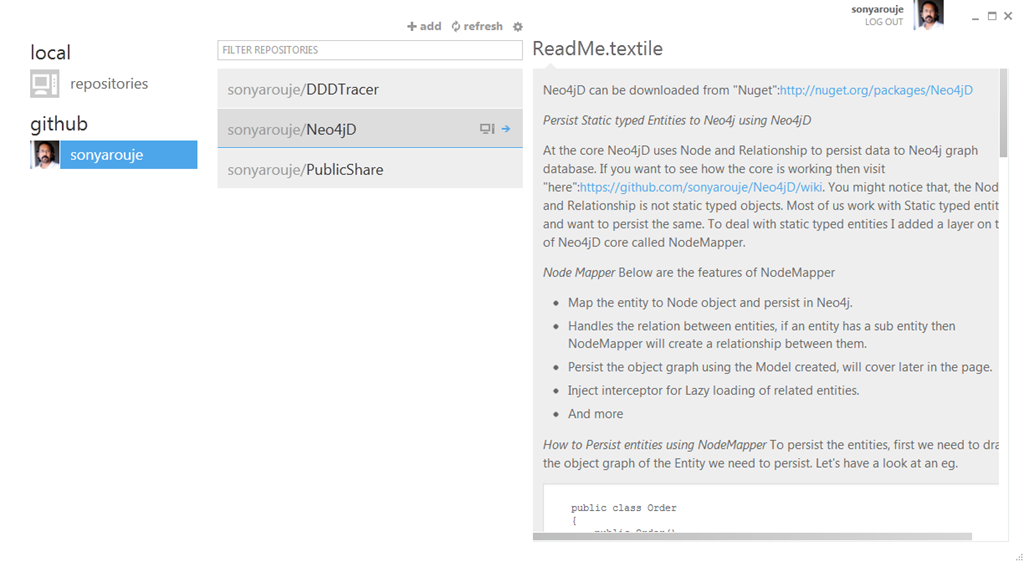
The important feature is, the moment you sign in with Windows client it creates a security token and updates it in Github. With the previous client it’s a headache, I screwed up the setup procedures so many times. To setup Git GUI run the command utility to create the security token, then manually update the key in you Github account, add your repo path, the procedures goes on….. In windows Client, it’s as simple as just login with your Github account and the client takes care of every thing else.
Once you logged in, click on the Github User Name and the client will show all your Github repositories. You can easily clone any repository to local by just clicking on the clone icon that will appear in mouse hover as shown below.
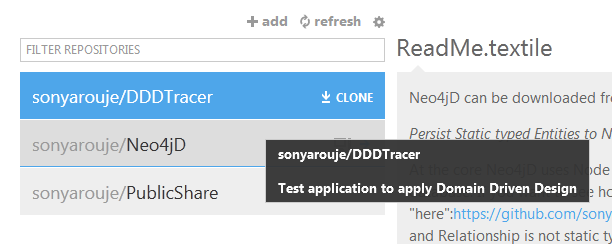
Before cloning make sure you update the Default storage directory. You can find the location under Tools and Options –> Options as shown below

The options menu brings up the below screen where you can update the settings

Update your default storage directory and click Update button, we are done with the settings. Let’s clone your repository, I already clone Neo4jD repo. Let’s see how to deal with commit and push actions using Windows client.
You can find all your cloned repo under local repositories. For demo I made a small change in the unit test. To perform the commit action in Windows Client, click on the arrow that shows next to your repo name as shown below
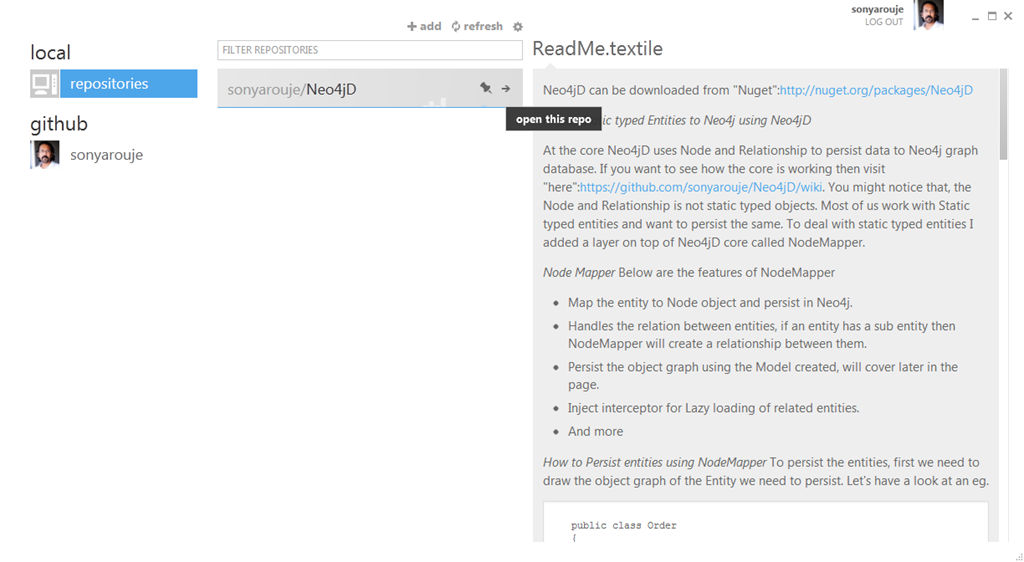
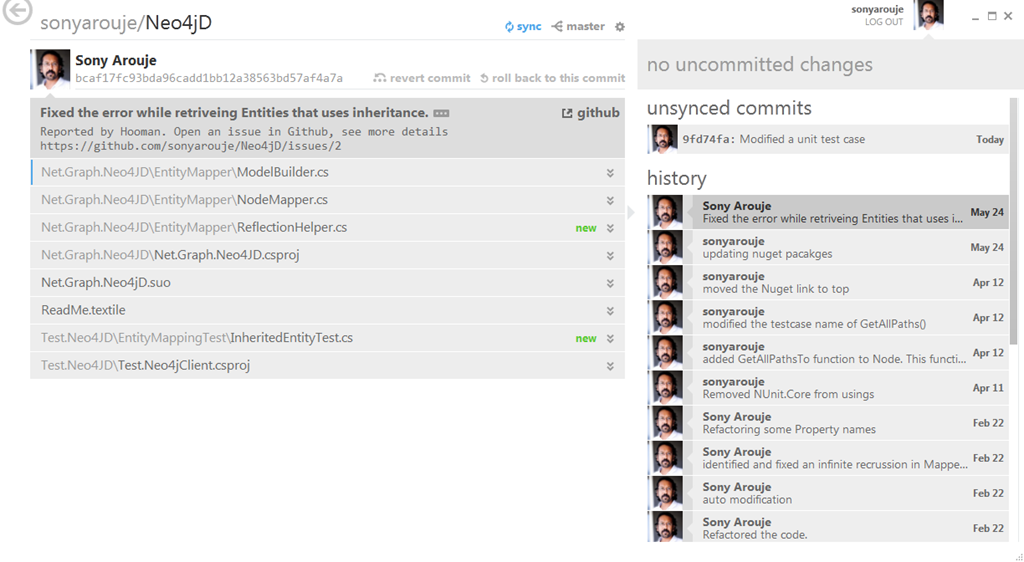
Will take you to the repo page where you can see all your changes and history as shown below. Left side display all the files to be commited and right side shows the commit comment and commit history.

If you want to see what changed in the source, click the arrow button next to changed file (marked in red rectangle above). You can see the changes just below it as shown below.

You can even discard the changes from commit by right clicking on the item and select Discard Changes from the context menu.
It’s the time to commit the changes, enter the commit comment in Commit Message text box displayed on the right hand side and click Commit button. See the below screen shot

Clicking on the History item will show the changes as part of that commit. Let’s see the history of the commit I made yesterday. You can see all the files modified as part of that commit and can see the changes by clicking the down arrow next the each item.
Another feature added to GitHub web is an addition of a button called ‘Clone in Windows’ as shown below. This helps to clone any repo directly from GitHub, and it uses the installed GitHub for Windows client to full fill the cloning.

I can say GitHub for Windows is a very user friendly client and I don’t think I will go back to GitGUI again.
Bufferapp–schedule your contents for social sharing.
A month ago I started using Bufferapp for posting messages to my twitter and Facebook page. One of the main advantage of Bufferapp is, it will buffer our content and post it to Twitter, Facebook or LinkedIn in scheduled intervals. If you are a regular tweeter then you might understand the disadvantage of tweeting one after another.
Bufferapp provides an extension for Google Chrome to easily add contents to your buffer account. Below is the screen shot of Bufferapp’s chrome extension.
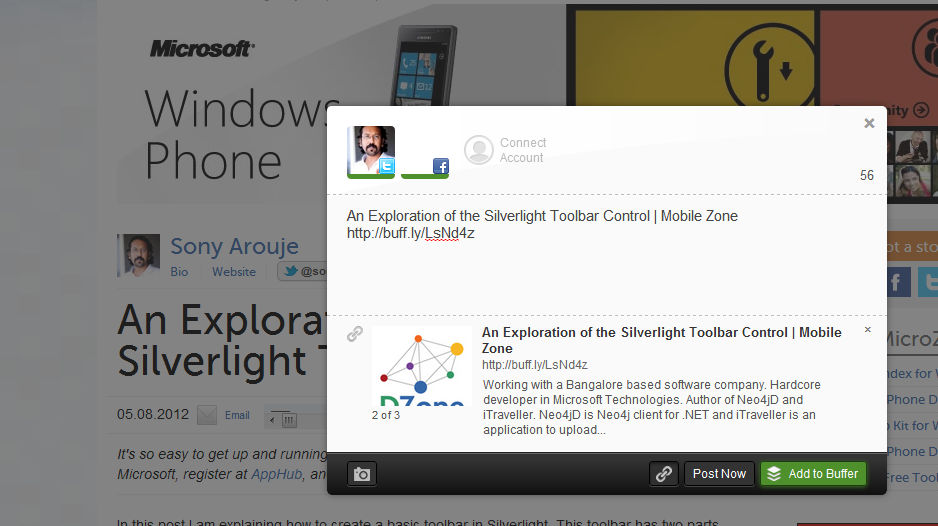
As you can see at the top, my buffer account is connected to Twitter and Facebook Page. Bufferapp’s chrome extension will show a preview of how the content will get posted to twitter and Facebook page. As you can see the Facebook page posting will have an image and some text associated with the link and tweet has just plain text. Extension also allows to edit any part of the text before buffering.
Once you are fine with the content click Add to Buffer button or Post Now. Add to Buffer will buffer the content in Bufferapp, Post Now will post the content instantly to the connected accounts.
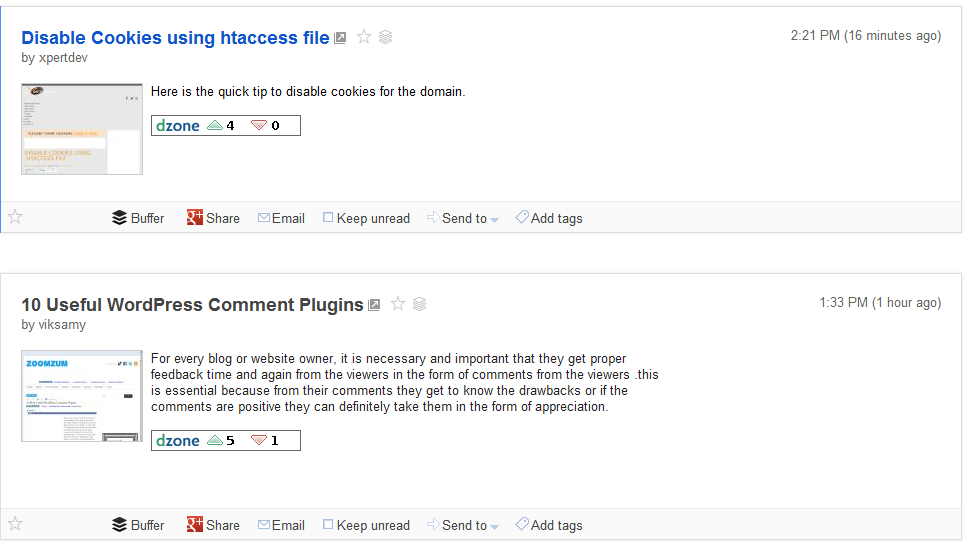
If you install Bufferapp chrome extension then you can directly post the content from Google reader, no need to open the page. Just click the buffer icon displayed below each news and it will open the window as shown above.
Web Interface
Buffer also comes with a user friendly web interface which helps the user to see the postings left in the buffer. It also allows the user to edit or remove the buffered items. Another nice feature is, if you post same content twice to buffer then it mark one item as duplicate and wont post it (helped several time)
It’s time to try Buffer app yourself. Give a try and let me know your feedback. Happy tweeting!
NHibernate Error – ‘nhIdOutParam’ No size set for variable length data type
I am working on a project where I have to connect to an Oracle database. I used NHibernate as my ORM, every thing worked as expected until the Save operation. The table I was dealing with has a ROWID field an auto generated field by Oracle. Here we cannot use the native generator of NHibernate, I felt the best fit here is ‘trigger-identity’ generator. As shown below I configured the rowid in my hbm file.
    <id name="_rowId" column="RowId" access="field">
      <generator class="trigger-identity"></generator>
    </id>
To my surprise Nunit throws the error “System.Exception : Parameter ‘:nhIdOutParam’: No size set for variable length data type: String.” whenever I try to save the entity.
I analyzed the insert query generated by NHibernate and every things is fine. Next option for me is google, like every one else I started searching in google, I got so many forums where people reported this issue but no solid answer. The error stack trace shows that the error is from System.Data.OracleClient, I felt like the issue is with the Oracle client I am using, here I am using the client from Microsoft not the native ODP.Net provided by Oracle. It seems like system.data.OracleClient is unable to handle the ‘returning’ statement added by NHibernate.
Nhibernate will create the Insert statement as shown below
Insert into Table (filed1, field2) values (p1, p2) returning RowId into :nhIdOutParam
I changed the NHibernate configuration to use the Oracle client and referred Oracle.DataAccess.dll to my project. Compiled the project and run the NUnit test, wow I got the Green bar after 4hrs of struggling. In my previous NHibernate configuration (hibernate.cfg.xml) the driver class property was
<property name="connection.driver_class">NHibernate.Driver.OracleClientDriver</property>
This configuration forces NHibernate to use the Oracle client provided with .NET. To instructed NHibernate to use the native oracle assembly (Oracle.DataAccess.dll) change the configuration as below
<property name="connection.driver_class">NHibernate.Driver.OracleDataClientDriver</property>
Hope this post may help some one to save some time.
Persist Static typed Entities to Neo4j using Neo4jD
At the core Neo4jD uses Node and Relationship to persist data to Neo4j graph database. If you want to see how the core is working then visit here. You might notice that, the Node and Relationship is not static typed objects. Most of us work with Static typed entities and want to persist the same. To deal with static typed entities I added a layer on top of Neo4jD core called NodeMapper.
Node Mapper
Below are the features of NodeMapper
- Map the entity to Node object and persist in Neo4j.
- Handles the relation between entities, if an entity has a sub entity then NodeMapper will create a relationship between them.
- Persist the object graph using the Model created, will cover later in the page.
- Inject interceptor for Lazy loading of related entities.
- And more
How to Persist entities using NodeMapper
To persist the entities, first we need to draw the object graph of the Entity we need to persist. Let’s have a look at an eg.
public class Order
{
    public Order()
    {
        _orderItems = new List<OrderItem>();
    }

    [EntityId]
    public int Id { get; set; }
    public virtual string Name { get; set; }

    IList<OrderItem> _orderItems;
    public virtual IList<OrderItem> OrderItems
    {
        get { return _orderItems; }
        private set { _orderItems = value; }
    }
    public void AddOrderItem(OrderItem item)
    {
        this._orderItems.Add(item);
    }
}

public class OrderItem
{
    public OrderItem()
    {
    }
    public OrderItem(int id, Product product)
    {
        this.Id = id;
        this.Product = product;
    }
    [EntityId]
    public int Id { get; set; }

    public virtual Product Product { get; set; }
}

public class Product
{
    public Product()
    {

    }
    public Product(int id, string productName)
    {
        this.Id = id;
        this.ProductName = productName;
    }
    [EntityId]
    public int Id { get; set; }
    public string ProductName { get; set; }
}
You will notice some rules in defining entities.
-
The unique Id field is decorated with EntityId attribute. It’s mandatory to identify the Id field of the entity.
-
Properties that needs Lazy loading should be virtual.
-
Mandatory to have a default parameter less constructor.
Now let’s define the object graph. This configuration helps NodeMapper to persist the entire Graph. It’s very similar to how we do in Entity Framwork Code first approach.
public class OrderConfiguration:EntityConfiguration<Order>
{
    public OrderConfiguration()
    {
        this.RelatedTo<OrderItem>(o => o.OrderItems);
    }
}

public class OrderItemConfiguration:EntityConfiguration<OrderItem>
{
    public OrderItemConfiguration()
    {
        this.RelatedTo<Product>(oi => oi.Product);
    }
}

public class ProductConfiguration:EntityConfiguration<Product>
{
    public ProductConfiguration()
    {
        this.Leaf();
    }
}
As you can see in the ProductConfiguration, there is no related entity so we marked it as Leaf.
Let’s see how to persist an order
[SetUp]
public void Initialize()
{
    GraphEnvironment.SetBaseUri("http://localhost:7474/");

    ModelBuilder.Add(new OrderConfiguration());
    ModelBuilder.Add(new OrderItemConfiguration());
    ModelBuilder.Add(new ProductConfiguration());
}
[TestCase]
public void SaveOrder()
{
    Order order = new Order();
    order.Id = 0;
    order.Name = "Sony";
    order.AddOrderItem(new OrderItem(0, new Product(0, "Rice")));
    order.AddOrderItem(new OrderItem(0, new Product(0, "Sugar")));

    NodeMapper nodeMapper = new NodeMapper();
    nodeMapper.Save<Order>(order);
    Console.WriteLine(order.Id.ToString());
    Assert.AreEqual(1, order.Id);
}
In the Initialize method of NUnit Test we added EntityConfigurations to ModelBuilder. NodeMapper uses the ModelBuilder to understand the Object graph and uses reflection to traverse through the object graph and persist it.
Lazy Loading
Neo4jD uses Lazy loading to load the related entities, it uses Castle DynamicProxy to intercept property calls and inject lazy loading functionality. To perform lazy loading the property should be virtual, you can see the OrderItems in Order entity.
Retrieve saved Entity
[TestCase]
public void GetOrder()
{
    NodeMapper nodeMapper = new NodeMapper();
    Order order = nodeMapper.Get<Order>(14);
    Assert.AreEqual(14, order.Id);
    foreach (OrderItem item in order.OrderItems)
    {
        Console.WriteLine(item.Id.ToString());
        Product prod = item.Product;
        if (prod != null)
            Console.WriteLine(prod.ProductName);
    }
    Assert.AreEqual(2, order.OrderItems.Count);
}
Neo4jD–.NET client for Neo4j Graph Database Part 3
This post talks about Index and Graph traversal functionalities added to Neo4jD.
Neo4j supports Cypher, Germlin and REST based api’s for traversal. As of now Neo4jD can creates query for Germlin and REST based traversal. Traversal is not fully implemented in Neo4jD, it’s still in progress.
How to Create Index
Creating index in Neo4j using Neo4jD is very simple as shown below
[TestCase]
public void Create_Index()
{
    Index test = Index.Create("TestIndex");
    Index fav = Index.Create("Favorites");
}
Indexing nodes with key/value pair helps to search it faster. Let’s see how to add nodes to the Favorites index.
[TestCase]
public void AddNodeToFavorites()
{
    Index fav = Index.Get("Favorites");
    Node node = Node.Get(1);
    fav.Add(node, "FirstName", "Sony");

    Node node1 = Node.Get(2);
    fav.Add(node1, "FirstName", "Viji");
}
We added two nodes to the index Favorites, as I said using index we can easily retrieve Nodes using the Key/Value pair. Let’s see how we can query the index using Neo4jD.
[TestCase]
public void Search_Index()
{
    Index fav = Index.Get("Favorites");
    IndexQuery qry = new IndexQuery();
    qry.GetKey("FirstName").StartsWith("Vi").OR().GetKey("FirstName").Equals("Sony");
    IList<Node> nodes= fav.Search(qry);
    Assert.AreEqual(2, nodes.Count);
}
You decided to remove a Node from the Favorites index, it’s a very simple call as shown below
[TestCase]
public void Remove_Node_FromIndex()
{
    Index fav = Index.Get("Favorites");
    Node node = Node.Get(1);
    fav.RemoveNode(node);
}
I removed Node Sony from the index.
That’s all about Index, let’s go through Germlin and REST Traversal
Germlin Traversal
Germlin is a groovy based Graph traversal language, Neo4j has a Germlin plugin to send Germlin script to Neo4j server.
Let’s see how to create a Germlin query using Neo4jD.
[TestCase]
public void Get_Out_Nodes()
{
    GermlinPipe germlinQuery = new GermlinPipe();
    germlinQuery.G.V.Out("son");
    Node father = Node.Get(1);
    IList<Node> nodes = father.Filter(germlinQuery);
    Assert.AreEqual(1, nodes.Count);
}
For more Germlin query you can reffer Neo4j API reference.
REST Traversal
For Rest traversal we need to provide Json structured query to the server as shown below. For more details goto Neo4j REST API reference.
{
“order” : “breadth_first”,
“return_filter” : {
“body” : “position.endNode().getProperty(‘name’).toLowerCase().contains(‘t’)”,
“language” : “javascript”
},
“prune_evaluator” : {
“body” : “position.length() > 10”,
“language” : “javascript”
},
“uniqueness” : “node_global”,
“relationships” : [ {
“direction” : “all”,
“type” : “knows”
}, {
“direction” : “all”,
“type” : “loves”
} ],
“max_depth” : 3
}
To create the syntax Neo4jD uses a fluent API as shown below.
[TestCase]
public void REST_Traversal_Test()
{
    Node node = Node.Get(19);
    Assert.IsNotNull(node);
    RestTraversal r = new RestTraversal();
    r.Order(OrderType.breadth_first)
        .Filter(new PropertyFilter().SetPropertyName("FirstName").Contains("Viji"))
        .RelationShips(RelationshipDirection.out_direction, "wife")
        .RelationShips(RelationshipDirection.all_direction, "family")
        .Uniqueness(UniquenessType.node_global)
        .MaxDepth(2);
    IList<Node> nodes = node.Filter(r);
    Assert.AreEqual (1, nodes.Count);
}
Neo4jD–.NET client for Neo4j Graph Database Part 2
This post talks about some of the new functionalities added to Neo4jD in recent days.
Persist Static typed object
In the previous post I explained how to create Node and Relationship using Neo4jD. As you might noticed that Node’s properties are dynamic, for e.g to set FirstName we say ‘node.SetProperty(“FirstName”,”Sony”)’. Just like me most of us are not comfortable with Dynamic properties, that’s why we create static typed entities. This post deals with how to persist static typed entities to Neo4j.
Note: I am not against Dynamics, it’s just a personal preference not to build around Dynamics.
Let’s talk with some examples.
public class Person
{
    public Person()
    {
        this.Address = new Address();
    }
    [EntityId]
    public int Id { get; set; }
    public string FirstName { get; set; }
    public string LastName { get; set; }

    public Address Address { get; set; }
}

public class Address
{
    [EntityId]
    public int AddressId { get; set; }
    public string Address1 { get; set; }
    public string City { get; set; }
}
So I have two classes to hold my data. Let’s see how to persist the object using Neo4jD. The core of Neo4jD is based on Node and Relationship with dynamic properties. On top of the core I added a mapper to do the mapping of Static typed entities to Nodes or relationship. I am not going to much insights of mapper, will just go through some e.g., if you need more insight better go through the Neo4jD in github.
How to Save object
[TestCase]
public Person SaveTest()
{
    Person person = new Person { FirstName = "Sony", LastName= "Arouje"};
    NodeMapper mapper = new NodeMapper();
    person=mapper.Save<Person>(person);
    Console.WriteLine("Generated Id: " + person.Id.ToString());
    Assert.AreNotEqual(0, person.Id);
    return person;
}
Behind the scenes the NodeMapper uses reflection to get the data from the Person object and create Node object. Let’s see how I am doing it.
public T Save<T>(T entity) where T:class
{
    Node node = this.CreateNode<T>(entity);
    node.Create();
    return MapperHelper.SetIdentity<T>(entity, node.Id);
}

private Node CreateNode<T>(T entity) where T:class
{
    Node node = new Node();
    node.AddProperty("clazz", typeof(T).ToString());
    typeof(T).GetProperties().Where(pr => pr.CanRead && MapperHelper.IsAnId(pr) == false)
    .ToList().ForEach(property =>
    {
        if(MapperHelper.IsPrimitive(property.PropertyType))
            node.AddProperty(property.Name, property.GetValue(entity, null).ToString());
    });

    return node;
}
CreateNode function does the mapping. It Iterates through the property and call node.AddProperty(property.Name, property.GetValue()), it’s same as node.AddProperty(“FirstName”,”Sony”).
You might have noticed that the Id field in the class is decorated with ‘EntityId’ attribute. It’s a mandatory attribute to Get or Set the node id to Entity’s id field.
Get Instance from Neo4J
[TestCase]
public void GetPersonById()
{
    NodeMapper mapper = new NodeMapper();
    Person person = mapper.Get<Person>(7);
    Console.WriteLine("Generated Id: " + person.Id.ToString());
    Assert.AreNotEqual(0, person.Id);
    Assert.AreEqual(“Sony”, person.FirstName);
}
To get the Person I called mapper.Get with unique id of the person and the mapper will return a valid person if it exist in db. NodeMapper uses below function to generate the object.
public T Get<T>(int id) where T:class
{
    Node node = Node.Get(id);
    T entity = (T)Activator.CreateInstance(typeof(T));
    if (node.GetProperty("clazz")!=typeof(T).ToString())
        throw new InvalidCastException(string.Format("Retrieved object with ID '{0}' is
an instance of '{1}' and unable to cast it to '{2}'", id.ToString(),
          node.GetProperty("clazz"), typeof(T).ToString()));
    typeof(T).GetProperties().Where(pr => pr.CanRead && MapperHelper.IsAnId(pr) == false)
    .ToList().ForEach(property =>
    {
        property.SetValue(entity, MapperHelper.CastPropertyValue(property,
        node.GetProperty(property.Name)), null);
    });

    entity = MapperHelper.SetIdentity<T>(entity, id);
    return entity;
}
Create Relationships
You can see that Person has an instance of Address, in Graph Person is related to Address. Let’s see how we can create that
[TestCase]
public void CanCreateRelationships()
{
    Person person = new Person { FirsName = "Sony", LastName = "Arouje" };
    person.Address.Address1 = "EcoSpace";
    person.Address.City = "Bangalore";
    NodeMapper mapper = new NodeMapper();
    mapper.CreateRelationshipTo<Person, Address>(person,person.Address);
    Console.WriteLine(person.Id.ToString());
    Assert.AreEqual(1, person.Id);
}
CreateRelationShipTo function will Save both Person and Address if it’s not saved other wise it’s create a relationship. In Neo4j the relationship will be person->address.
Get Person with Relationship
[TestCase]
public void CanGetRelatedNodes()
{
    NodeMapper mapper = new NodeMapper();
    Person person = mapper.Get<Person>(12);
    IList<Address> address = mapper.GetRelatedEntities<Person, Address>(person, typeof(Address));
    Assert.AreEqual(1, address.Count);
    Assert.AreEqual("EcoSpace", address[0].Address1);
}
I know the persisting and retrieving relationships are bit messy, I will work on it to make it more clear and silent.
That’s all about persisting Static typed objects to Neo4j.
In the next post I will talk about Creating Index, Traversal using Germlin and REST.


 Sony Arouje