Working of my very basic and crude Aeroponic System
Here I will just show you a video of my Aeroponic system. As you can see its very basic, I didn’t want to spend much money to test whether my system works, so I used cost effective materials.
In one of my previous post I explained about how I used Rasberry pi to control the motor. If you haven’t read it, please check that out too.
What Next?
-
From this initial test run, I could see my system is a success. Now I will add more pillars and a high capacity tank.
-
Automate day to day activities. For e.g. I have to add nutrients to the reservoir once in two day. Using a Peristaltic pump and a motor driver I can automate the process with a click of a button from my mobile app.
 |
Scan using your mobile phone and access/share the post from your phone. |
Distributed Raspberry pi based Hydroponic Controller
Last couple of weeks I was building a Hydroponic system controlled by Raspberry pi. As of yesterday night my system was based on a single Raspberry pi that control one or more water pumps. It was one of my design goal to add more Pi’s based controllers to the network with zero configuration.
Why more Controllers?
As I am living in an apartment and the hydroponic system is going to be installed in the balconies. Connecting the motors installed in different balconies to a single Raspberry controller will make things ugly, I don’t want wires hanging here and there. So one option is, add another Raspberry pi controller. It’s easily doable, just install the controller software I created and plug the water pump.
As I explained in my last post, this system is controlled via mobile devices. So when ever I add a controller to my hydroponic network I have to create an entry in each of the device in which my mobile app installed. Also I have to assign a static ip to each Raspberry controller or keep track of the host name. When I start thinking about it, I see a system with some complications. Yesterday night I modified my controller application, this is what I come up with.
Unifying server and Controllers with self advertisement
I created a Unifying server in node js. The controller system running in different Raspberry pi’s advertise about it when ever it joins to my wifi network. This Unifying server will get notification whenever a new controller joins. I use Node Discovery module for service discovery and publishing. In this scenario I don’t have to worry about any configuration of the controllers. Just install my controller software in each raspberry pi and plug it into my hydroponic system.
My mobile app connects to this unifying server instead of individual controller system. All the commands to the controllers will be routed via this unifying server to respective controller. Below is the routing function I come up with.
app.use('/', router);
router.use(function (req, res, next) {
    options.host = req.headers.hostid;
    options.path = req.originalUrl;
    options.method = req.method;


    var request = http.request(options, function (response) {
            response.on('data', function (data) {
                res.setHeader('content-type', 'application/json');
                res.send(data);
            });
        });
        if (req.method === 'POST') {
            request.setHeader('content-type', 'application/json');
            request.write(JSON.stringify(req.body));
        }
        request.end();

});
This unifying server is a very light weight system and can run in a Raspberry pi or in my computer. On of my design goal is that Controller should be self sufficient and should run in any circumstances even if there is no connection to unifying server.
The Unifying server and the Controller system is based on Node js. It’s a beautiful platform and I learned a lot about node js while building this system. Also become a huge fan of Javascript.
Next post I will go through the mobile app I created.
Happy coding…
 |
Scan using your mobile phone and access/share the post from your phone. |
Hydroponics system controlled by Raspberry Pi an overview
Last couple of weeks I was spending my free time to understand and building a Hydroponic system to grow vegetables in my Apartment’s Balcony. I just don’t want to build a normal system that controlled by a timer, instead I want to build a system that I should be able to monitor even I am not at home, change watering schedule using my mobile device.
Before we jump into details, let me give you a brief about Hydroponic.
What is Hydroponics?
In simple terms, hydroponic is a system where you can grow vegetables without soil, mix the required nutrients in water and feed directly to plants. Advantage of this system is, we are feeding plants what they want, instead plant hunting for the nutrients from soil. Also less consumption of water as we reuse the water.
If you search in google you will get more details of Hydroponics. I am working on a subset of Hydroponic called Aeroponics, where plants grow vertically. I made the vertical growing tower based on the method described by Gunnar Shaffer.
Any Hydroponic system needs water circulation using a water pump, I used a submersible pump bought from Ebay for 225.00 INR. This pump should pump water in a periodical manner, say water for 15 mins then sleep for 60 mins and the cycle continues. We can use a timer to do that, it will cost from 1500 – 2500 INR. I decided to use one of the Raspberry pi lying in my table.
Why Raspberry pi?
As a programmer, this small brilliant device give me the flexibility of controlling the system with the programming language of my choice. For this system I used Node js platform to build the controller system. I spent a night to build the basic system that can turn on/off any device in a specific interval and some REST api’s through which mobile device can interact. Later I spent several nights to polish and enhancing my system.
For my testing I used a breadboard to turn off/on one LED. After I successfully controlled the LED, it’s the time to control the Electrical motor. I bought a 12v single channel Relay from ebay for 99.00 INR. It can control one electrical device, in my case the submersible water pump. This post will give you an idea about how to connect the Relay to your Raspberry pi.
Mobile Application
After I completed the system running in Raspberry pi, I decided to write the application for the mobile device. Through which I can interact with the system. As of now the application can
-
Turn off the pump, in case of maintenance.
-
Schedule watering interval.
-
Turn on motor to water immediately.
The mobile application is written using Cordova platform, so that app can run on my Windows or Android devices.
What Next?
-
Suggestion system for nutrient quantity based on the previous data.
-
Distributed cluster of Pi based Aeroponics blocks controlled by a server.
-
Connect Water level monitor to Rasp pi and notify if water level of the tank goes down.
Update: see my hydroponic in action.
Thanks to
-
My wife, for her support and encouragement, for all the crazy stuffs that I am experimenting with.
-
My father who guides and clarifies all my question related to Electrical devices and suggestions to improve the system for better performance.
-
Gardenguru for providing me with key information like measuring and controlling ph and EC level. I also bought the necessary items from them like Net Cups, Hydrotons, Nutrients, etc. They have a shop near to my home, I go there and spent time talking with them. They are very enthusiastic and provide with any info about Hydroponic to a newbie like me.
 |
Scan using your mobile phone and access it from your phone. |
Node js error handling using modules inherited from EventEmitter
In node js most of the operations are asynchronous and normal try-catch will not work. In case of any error and we didn’t handle it properly, our node process will crash. In this post I will explain how to handle errors properly using EventEmitter.
In this e.g. we are going to read some data from a SQLite db, I use dblite as my node module to deal with SQLite db. For this e.g. I created a UserRepository module and inherited from EventEmitter
UserRepository.js
var dblite = require('dblite');
var util = require('util');
var EventEmitter = require('events').EventEmitter;

var UserRepository = function () {
    var self = this;
    self.getUser = function (userid, callback) {
        db.query('select * from USER where USER_ID=:id', [], { id: userId },
        function (err, rows) {
            if (err)
                publishErr(err);

            callback(rows);
        });
    };

    var publishErr = function (err) {
        self.emit('error', err);
    };
};


util.inherits(UserRepository, EventEmitter);
module.exports = UserRepository;
Using util.inherits, we inherits the UserRepository module from EventEmitter. Later we export that module to use in other node modules. The publishErr() function will emit an ‘error’ event in case of any error and calling module can subscribe to that event and handle the error.
Let’s use the above module in another node module. Say an express rest api.
restApi.js
var express = require('express');
var bodyParser = require('body-parser')
var UserRepository = require('./UserRepository');
var userRepo = new UserRepository();
var app = express();
app.use(bodyParser.json());
app.listen(8080);

userRepo.on('error', function (err) {
    console.log(err);
});

app.get('/users/;id', function (req, res) {
    userRepo.getUser(req.params.id, function (record) {
        res.send(record);
    });

});
Let’s go through the lines in bold.
Here we are creating the instance of UserRepository module.
var UserRepository = require('./UserRepository');
var userRepo = new UserRepository();
The calling module should subscribe for the error event, that’s what we are doing here. I am just writing the error to the console. You can do whatever you want with that err object.
userRepo.on('error', function (err) {
    console.log(err);
});
This way we can ensure that our errors are handled properly in an elegant way.
Node js has an uncaughtException event and use it as a last resort.
process.on('uncaughtException', function (err) {
    console.log(err);
})
VS2013 Multi-Device Hybrid Apps and Network Error in Windows8
Last couple of days I was working on Node js REST service running in one of my Raspberry Pi. The idea is to do certain stuffs remotely via mobile devices. Later I will write a post explaining the project in detail. I completed Phase 1 of the application running in Raspberry pi. So next task was creating a mobile app, I decided to use Cordova with VS 2013 Multi Device Hybrid app template.
Yesterday night I started working on the Hybrid app in VS 2013 for Windows 8. First thing I wanted to test was the connectivity to the REST service running in Raspberry pi. I used Angular js $http to connect to the REST service. To my surprise what ever I do, the app is throwing error while doing http post with status 0. The same code works successfully if I run as a web app.
I spend a hell lot of time to figure out the issue but no success. Then I decided to use fiddler to test the traffic, when fiddler is running the app could able to communicate with the REST service. I got a hint, when we run Fiddler in Win8, it adds apps to AppContainer Loopback exemption. If I exempt my windows 8 app then http request starts failing. This stage I realized that, the error is because of some app configuration issue. Also in VS Java Script console I could see the error as shown below.
XMLHttpRequest: Network Error 0x2efd, Could not complete the operation due to error 00002efd.
All my google search return nothing. After a long hours of desperate research I came to know that to access private network I need to add Private Network capability to windows 8 app. But I didn’t know how to add it for Hybrid app as there is no Capabilities section in the config.xml. Some more search leads me to the Faq page of Multi device hybrid app template. As per the FAQ page we can override the default AppManifest.xml as shown below.
1. Create a Package.appxmanifest file under res/cert/windows8. Create a windows8 solution folder if not exist.
2. Open the project folder and go to bld/windows-AnyCpu/Debug and open AppxManifest.xml in notepad, copy the content and paste it in the above Package.appxmanifest file.
3. Double click on Package.appxmanifest file then goto Capabilities tab and choose ‘Private Networks (Client & Server)’.
4. Save it and run the app again, this time it worked I could connect to my Node js REST api.
Hope this will help some one to solve the XMLHttpRequest issue.
Happy Coding…
Chat application using SignalR 2.1
Around two years ago I published a post about SignalR. Recently some readers requested an updated post using SignalR 2.1, here is the updated one.
For this post I created a very simple chat application that hosted in IIS, developed in .NET 4.5. Below is the project structure.
-
SignalrTracer.ChatServer: An empty ASP.NET Web Application which host the SignalR hub.
-
SignalrTracer.Publisher: A class library project that has SignalR hubs. I created this project just to isolate SignalR hubs from the ChatServer.
-
SignalrTracer.ChatClient: Another empty ASP.Net Web Application act as the client.
SignalrTracer.Publisher
As I mentioned above, this project contains the SignalR hubs. We can add SignalR framework using Nuget package manager.
Open Package Manager Console from Tools->Nuget Pacakger Manager and choose SignalrTracer.Published as the Default Project in the console window, then enter
PM> Install-Package Microsoft.AspNet.SignalR.Core
The command will add the SignalR and dependent frameworks. It’s time to create our chat hub.
ChatHub.cs
using Microsoft.AspNet.SignalR;
namespace SignalrTracer.Publisher
{
    public class ChatHub:Hub
    {
        public void Subscribe(string chatId)
        {
            Groups.Add(Context.ConnectionId, chatId);
        }

        public void Publish(string toChatId, string message)
        {
            Clients.Group(toChatId).flush(message);
        }
    }
}
SignalR 2.1 relies on OWIN to host it. For that we need to create a Startup class as shown below.
using Microsoft.Owin;
using Owin;
using Microsoft.AspNet.SignalR;
[assembly: OwinStartup(typeof(SignalrTracer.Publisher.Startup))]
namespace SignalrTracer.Publisher
{
    public class Startup
    {
        public void Configuration(IAppBuilder app)
        {
            // For more information on how to configure your application, visit http://go.microsoft.com/fwlink/?LinkID=316888
            var hubConfig = new HubConfiguration();
            hubConfig.EnableDetailedErrors = true;
            hubConfig.EnableJSONP = true;
            app.MapSignalR("/chatserver", hubConfig);

            app.Run(async context =>
            {
                await context.Response.WriteAsync("Chat server started");
            });
        }
    }
}
That’s it we created our SignalR hub. Let’s host it in our ChatServer.
SignalrTracer.ChatServer
This project is a OWIN host, to do that we need to refer another Nuget package called Microsoft.Owin.Host.SystemWeb.
Open the Nuget Package Manager Console and set Default project as SignalrTracer.ChatServer, then enter
PM> Install-Package Microsoft.Owin.Host.SystemWeb
Once all the package installed, just refer SignalrTracer.Publisher project and run the project. If every thing is fine then you can see an Internet Explorer with a string Chat server started. This means SignalR hub is up and running and any clients can connect now.
SignalrTracer.ChatClient
I used Javascript to connect to SignalR server. Open Nuget Package Manager Console and enter
PM> Install-Package Microsoft.AspNet.SignalR.JS
It will install JQuery and JQuery extension of SignalR client. I created an index.html and added the code below.
<!DOCTYPE html>
<html xmlns="http://www.w3.org/1999/xhtml">
<head>
    <script src="Scripts/jquery-1.6.4.min.js"></script>
    <script src="Scripts/jquery.signalR-2.1.2.min.js"></script>
    <script type="text/javascript">
    $(function () {
        var connection = $.hubConnection('http://localhost:35144/chatserver');
        var proxy = connection.createHubProxy('ChatHub');
        connection.start()
                .done(function () {
                    $('#messages').append('<li>Connected to chat</li>');
                })
                .fail(function () { alert("Could not Connect!"); });

        proxy.on('flush', function (msg) {
            $('#messages').append('<li>' + msg + '</li>');
        });

        $("#send").click(function () {
            proxy.invoke('Publish', $("#sendTochatId").val(), $("#message").val());
        });

        $("#connect").click(function () {
            proxy.invoke('subscribe', $("#chatId").val());
            $('#messages').append('<li>subscribed to chat</li>');
        });
    });
    </script>

    <title></title>
</head>
<body>

    <label>Chat id</label> <input type="text" id="chatId" /><input type="button" id="connect" value="Connect" /><br />
    <label>Send To</label> <input type="text" id="sendTochatId" /><br />
    <label>Message</label> <input type="text" id="message" />
    <input type="button" id="send" value="Send"/>
    <div>
        <ul id="messages"></ul>
    </div>
</body>
</html>
You might need to change the url of hubConnection marked in bold.
Once the connection established messages section will get appended with ‘Connected to chat’ message.
Enter a unique Id in Chat Id text and click Connect, open multiple window and connect with different chat id’s.
As you can see it’s a very basic and simple chat system based on SignalR.
Happy coding…
Compile SQLite for WinRT with FTS4 unicode61 support
I was experimenting with the FTS3/FTS4 feature of SQlite in a WinRT app. The default tokenizer ‘simple’ wont tokenize special character like $, @, etc. The solution is to use ‘unicode61’ tokenizer. Unfortunately the SQLite installer for WinRT8.1 comes without unicode61 tokenizer. I searched a lot to get a SQlite WinRT build that supports unicode61 but I was not lucky enough to get one, so I decided to build one myself.
Tim Heuer have a great post explaining about creating a build of SQLite for WinRT, I went through that and acquired all the tools to build, including the SQLite source code. I did exactly the same way Tim explained in the video, finally I got my build. But again it has the same issue, not supporting unicode61 tokenizer. I tried several builds and all these time I build with DSQLITE_ENABLE_FTS4_UNICODE61=1 and other flags I mentioned below.
After several attempt with so many permutations and combinations, I got it working. Tim’s video is a very good reference for building SQLite for WinRT. But if you want unicode61 support then follow the below steps, it’s same as Tim’s explained with some exclusion.
- mkdir c:\sqlite
- cd sqlite
- fossil clone http://www.sqlite.org/cgi/src sqlite3.fossil
- fossil open sqlite3.fossil
fossil checkout winrt,never issue this command, it will never include unicode61- Added this step to enable unicode61 tokenizer. Append the below config to Makefile.msc, you can see some config already existing append the below config to it.
OPT_FEATURE_FLAGS = $(OPT_FEATURE_FLAGS) -DSQLITE_ENABLE_FTS4=1
OPT_FEATURE_FLAGS = $(OPT_FEATURE_FLAGS) -DSQLITE_ENABLE_FTS3_PARENTHESIS=1
OPT_FEATURE_FLAGS = $(OPT_FEATURE_FLAGS) -DSQLITE_ENABLE_FTS4_UNICODE61=1
- Compile the code by issuing nmake -f Makefile.msc sqlite3.dll FOR_WINRT=1
I could build X86 and X64 using VS2012 command prompt for X86 and X64. But when I tried to compile for ARM I was getting some errors, I was fortunate enough to find a solution in StackOverflow. Followed that solution and I got the SQLite builds for X86, X64 and ARM.
I don’t want to spend time in creating a vsix package and install it in my machine, instead I took the backup of SQLite for WinRT version 3.8.5, in my machine the installed path is C:\Program Files (x86)\Microsoft SDKs\Windows\v8.1\ExtensionSDKs\SQLite.WinRT81. Then went into each folder and replaced the lib and sqlite dll with the respective builds I created.
Leave your comments if you have any questions.
Happy coding…
WinRT TextBlock with HyperLinks
I was doing some experiments with Window 8 app development. I wanted to show the text in a TextBlock with any URL as a clickable hyperlink, so that user can click on it and navigate to that webpage. We can do this easily via xaml as shown below. I googled a lot to find a way to do the same in MVVM approach. With no solution in hand I decided to come up with a solution using Attached Properties.
<TextBlock x:Name="textValue" TextWrapping="Wrap">
     <TextBlock.Inlines>
         <Run Text="This is an example of how Hyperlink can be used in a paragraph of text.
               It might be helpful for you look to"></Run>
         <Hyperlink NavigateUri="www.bing.com">bing</Hyperlink>
         <Run Text="for more answers in the future."></Run>
      </TextBlock.Inlines>
</TextBlock>
I am using Caliburn Micro to bind the text, so the above approach will not suit my requirement. The solution I come up with is Custom Attached Properties. In the Attached properties I applied the above logic but via code. Have a look at the code.
using System;
using System.Text;
using Windows.UI.Xaml;
using Windows.UI.Xaml.Controls;
using Windows.UI.Xaml.Documents;
namespace Test.App.AttachedProps
{
    public class HyperLinkedTextBlock
    {
        public static string GetText(TextBlock element)
        {
            if (element != null)
                return element.GetValue(ArticleContentProperty) as string;
            return string.Empty;
        }

        public static void SetText(TextBlock element, string value)
        {
            if (element != null)
                element.SetValue(ArticleContentProperty, value);
        }

        public static readonly DependencyProperty ArticleContentProperty =
            DependencyProperty.RegisterAttached(
                "Text",
                typeof(string),
                typeof(HyperLinkedTextBlock),
                new PropertyMetadata(null, OnInlineListPropertyChanged));

        private static void OnInlineListPropertyChanged(DependencyObject obj,
             DependencyPropertyChangedEventArgs e)
        {
            var tb = obj as TextBlock;
            if (tb == null)
                return;
            string text = e.NewValue as string;
            tb.Inlines.Clear();

            if (text.ToLower().Contains("http:") || text.ToLower().Contains("www."))
                AddInlineControls(tb, SplitSpace(text));
            else
                tb.Inlines.Add(GetRunControl(text));
        }

        private static void AddInlineControls(TextBlock textBlock, string[] splittedString)
        {
            for (int i = 0; i < splittedString.Length; i++)
            {
                string tmp = splittedString[i];
                if (tmp.ToLower().StartsWith("http:") || tmp.ToLower().StartsWith("www."))
                    textBlock.Inlines.Add(GetHyperLink(tmp));
                else
                    textBlock.Inlines.Add(GetRunControl(tmp));
            }
        }

        private static Hyperlink GetHyperLink(string uri)
        {
            if (uri.ToLower().StartsWith("www."))
                uri = "http://" + uri;

            Hyperlink hyper = new Hyperlink();
            hyper.NavigateUri = new Uri(uri);
            hyper.Inlines.Add(GetRunControl(uri));
            return hyper;
        }

        private static Run GetRunControl(string text)
        {
            Run run = new Run();
            run.Text = text + " ";
            return run;
        }

        private static string[] SplitSpace(string val)
        {
            string[] splittedVal = val.Split(new string[] {" "}, StringSplitOptions.None);
            return splittedVal;
        }
    }
}
In the above code I analyze the text for urls after splitting it, you can also do it using RegEx. As this code is just for protyping, I didn’t pay much attention to the quality of it.
In the xaml page I refer this attached property as shown below.
xmlns:conv="using:Test.App.AttachedProps"
In the Textblock, bind the text via the attached property as shown below.
<TextBlock conv:HyperLinkedTextBlock.Text="{Binding TextVal}"/>
If the TextVal has any words that starts with ‘http:’ or ‘www.’ then the above Custom Attached Property will create a HyperLink other wise create a Run control and add it to the Inline collection of the TextBlock.
Happy coding…
Access Raspberry Pi via internet
In this post I will explain how to access Raspberry pi via Internet. I am trying out a home automation system using Pi and I wanted to access a node.js service running in my Raspberry pi. Also I may wanted to SSH to the pi to restart or configure it while I am away from home.
Configuring the Router
In my home Raspberry Pi is connected to a Netgear R6300 router. The router is then connected to a DSL modem. In these kind of setup we might be dealing with four different IP’s
-
External IP assigned to you by your ISP.
-
IP Address of the modem
-
IP Address of the Router assigned by the modem
-
IP Address of the Raspberry Pi assigned by Router.
Prerequisite
-
Credentials to login to the Modem configuration.
-
Credentials to login to the router configuration.
External IP: you can get your external ip by visiting whatismyip.com
IP Address of the Modem and Router: As I am using Netgear modem, I login into Netgear genie app. And from the Internet section I could see the IP Address assigned to my router as shown below.
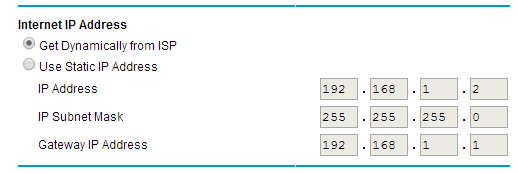
As you could see the IP address assigned to my router is 192.168.1.2. Also you can see the Gateway IP address 192.168.1.1, that IP will be the IP address of your modem.
IP address of the Raspberry pi: SSH to Raspberry PI and issue ‘ifconfig’ command and you can see some details and check wlan0 as shown below. Line in bold shows the ip address of the Pi.
wlan0 Link encap:Ethernet HWaddr 04:a1:51:6a:fb:8d
inet addr:10.0.0.10 Bcast:10.0.0.255 Mask:255.255.255.0
UP BROADCAST RUNNING MULTICAST MTU:1500 Metric:1
RX packets:5543 errors:0 dropped:11 overruns:0 frame:0
TX packets:1799 errors:0 dropped:0 overruns:0 carrier:0
collisions:0 txqueuelen:1000
RX bytes:1200798 (1.1 MiB) TX bytes:192891 (188.3 KiB)
In my scenario I assigned a static IP to this Pi, other wise router’s DHCP server will assign ip and might change from time to time. So most router have configuration, to set static IP to the devices and will never change. At my house most of the devices like TV, Tabs and Raspberry PIs have static IP’s and the guest devices uses DHCP assigned IP’s.
Let’s configure SSH to the Pi from internet.
Router Port Forwarding
Excerpt from Genie help
Port forwarding is designed for FTP, Web server, or other server-based services. Once port forwarding is set up, requests from the Internet are forwarded to the proper server.
In the Genie app you can find Port forwarding in Advanced setup->Port forwarding/Port triggering, you might be able to find some thing similar in other modem’s configuration.
I clicked ‘Add Custom Service’ button and it will show the below screen to setup Port forwarding configuration. Here I am configuring SSH.
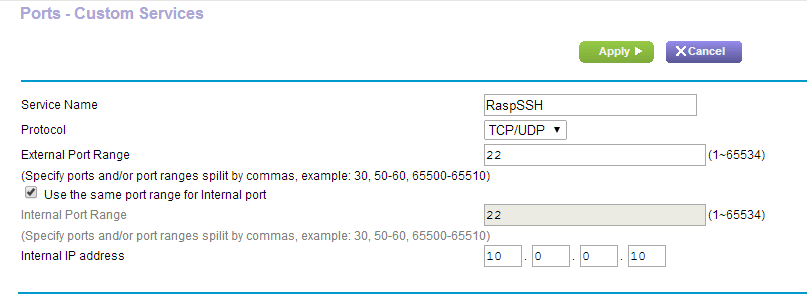
Here 22 is the port where SSH server in my PI is listening. Internal IP address is the IP address of the Raspberry Pi. Click apply and the changes will get saved.
We setup the port forwarding in the router. We need to do the similar configuration in Modem.
Modem Port Forwarding
Enter the IP address of the modem in the Chrome/IE, enter the user name and password if prompted.
Note: My DSL modem is pretty old one and may not be match with the interface of your modem configuration screen.
The port forwarding configuration in my Modem is located at Advanced Setup/NAT/Virtual servers. See the configuration below.

Here I setup the external port number as well as internal port number. You can have different external port number if you want, say for e.g. external port number 8090 can be mapped to internal port number 22. The server IP address should be the IP address of the router.
Check whether the port is opened by going to yougetsignal.com, if the port is still closed then you might need to do Port triggering in Modem as shown below.
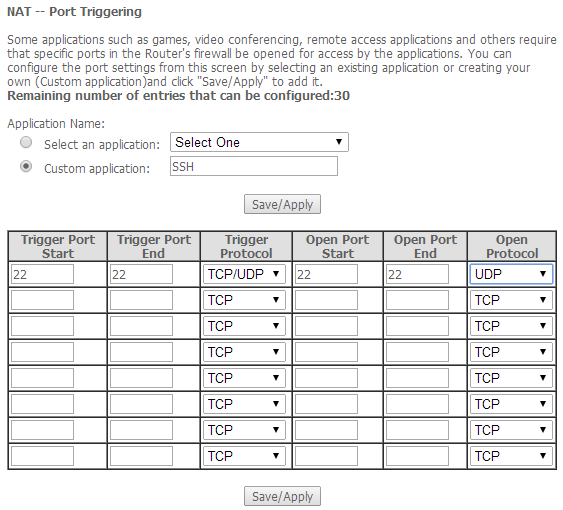
We successfully configured SSH to Raspberry Pi from internet, you can check using a machine connected to a different network and connect to Pi using any SSH client like Putty. While connecting the IP address should be the external IP address and the port should be the one configured in Modem, here it’s 22.
Conclusion
The above approach will work, in case you want to open any port, I have a node.js service listening to 8090 in the same Raspberry pi. I did the above approach to access it via internet.
Leave your comments if you like this post or in case of any questions.
Pi Tracker–Code running in Raspberry Pi
In my last post you can see the Tracker in action. This post I will explain the code running in Raspberry pi that controls the Tracker. I use Wiring Pi to control the GPIO instead of the default RPI.GPIO. The intention of using Wiring pi is because Software PWM is easy to implement. Any way after the first run of the tracker I realized that my tracker is slow moving one and no need to control the speed, so I haven’t used Software PWM here.
Installing Wiring Pi for python
Command prompt type the below commands
-
sudo apt-get install python-dev python-pip
-
sudo pip install wiringpi2
Let’s check whether wiringPi installed correctly
sudo pythonimport wiringpi2wiringpi2.piBoardRev()
if it returns a value then wiring Pi installed successfully.
Pi Tracker php code running in Raspberry pi
Motor.py
import wiringpi2 as io
from time import sleep
class Motor:
        def __init__(self, gpio_a, gpio_b):
                self.Gpio_a=gpio_a
                self.Gpio_b=gpio_b
                self.activeGpio=gpio_a
        def setup(self):
                io.wiringPiSetupGpio()
                io.pinMode(self.Gpio_a,1)
                io.pinMode(self.Gpio_b,1)
        def forward(self):
                self.stop()
                self.activeGpio=self.Gpio_a
        def reverse(self):
                self.stop()
                self.activeGpio=self.Gpio_b

        def acclerate(self,speed):
                io.digitalWrite(self.activeGpio,1)
                #speed param is not used here.
        def stop(self):
                io.digitalWrite(self.Gpio_a,0)
                io.digitalWrite(self.Gpio_b,0)
Engine.py
from Motor import Motor
class Engine:
        motor_a=Motor(17,27)
        motor_b=Motor(23,24)
        def __init__(self):
                Engine.motor_a.setup()
                Engine.motor_b.setup()
        def steer(self, command):
                direction,speed=command.split(",")
                if(direction=="CLOSE"):
                        self.stop()
                elif (direction=="U"):
                        self.forward()
                elif (direction=="L"):
                        self.left()
                elif(direction=="R"):
                        self.right()
                else:
                        self.reverse()
        def forward(self):
                Engine.motor_a.forward()
                Engine.motor_b.forward()
                self.acclerate()
        def reverse(self):
                Engine.motor_a.reverse()
                Engine.motor_b.reverse()
                self.acclerate()
        def right(self):
                Engine.motor_b.reverse()
                Engine.motor_a.forward()
                self.acclerate()
        def left(self):
                Engine.motor_a.reverse()
                Engine.motor_b.forward()
                self.acclerate()
        def acclerate(self):
                Engine.motor_a.acclerate(10)
                Engine.motor_b.acclerate(10)
        def stop(self):
                Engine.motor_a.stop()
                Engine.motor_b.stop()
                print "engine stopped"
trackerRemoteListener.py
import socket
from Engine import Engine
TCP_IP = '10.0.0.10'
TCP_PORT =5005
BUFFER_SIZE = 100
engine= Engine()
engine.stop()
s = socket.socket(socket.AF_INET,socket.SOCK_STREAM)
s.bind((TCP_IP, TCP_PORT))
s.setsockopt(socket.SOL_SOCKET, socket.SO_REUSEADDR, 1)
s.listen(1)
conn, addr = s.accept()
print 'Connection address:', addr
while True:
        try:
                data = conn.recv(BUFFER_SIZE)
                print "received data: ",data
                engine.steer(data)
                if not data:
                        engine.stop()
                        conn,addr=s.accept()
        except KeyboardInterrupt:
                conn.close()
                engine.stop()
                print "connection closing"
        except Exception as err:
                conn.close()
                s.listen(1)
                conn,addr=s.accept()
                #s.listen(1)
                print "error occured"
                pass
conn.close()
How it works
Motor.py class represent a motor in the Tracker. It accepts two parameters and it should be a valid GPIO pin to which the motor is connected. For e.g Motor_a is connected to GPIO 17 and 27. If we give write 1 to 17 and 0 to 27 then Motor_a will run forward, write 1 to 27 and 0 to 17 Motor_a run reverse.
Pi Tracker uses two motors to drive, Engine.py controls these two motors. As you can see in the code Engine.py creates two Motor instance. It also has functions to steer the tracker in different directions.
trackerRemoteListener.py is the socket program that listens to the command from external device to control the tracker. To control this tracker I used an Android tab that sends the command to this listener.
Hope the code is self explanatory, if not post your questions in the comment section.
Happy coding…


 Sony Arouje