Communication between Raspberry Pi and Arduino using XBee
Recently I was doing some experiments to establish a wireless communication between a Raspberry pi and Arduino. To establish wireless communication I used XBee Pro Series 2 from Digi International. The idea behind this test setup is to test, whether I can control devices like motor or read different sensors remotely.
One of the biggest advantage of using XBee is, you can find a lot of tutorials and libraries for any kind of system and programming languages. For this test app, I used Node js in RPi and C in Arduino.
Test Setup
XBee: I configured two xbee, one as Coordinator and another as Router. Both in API mode 2 (AP =2). I used XCTU to configure both the device. Only reason to choose API 2 is because the Arduino library I used only support API mode 2.
Raspberry pi: connected Coordinator XBee to one of my RPi. You can see more about the connection in one of my earlier post.
Arduino Uno: connected the Router xbee to one of my Arduino. The connection is pretty simple as below.
-
XBee Rx –> Arduino Tx
-
XBee Tx -> Arduino Rx
-
XBee 3.3v-> Arduino 3.3v
-
XBee Gnd –>Arduino Gnd
Raspberry Pi Node js code
Modules used
- xbee-api: npm install xbee-api
- serialport: npm install serialport
var util = require('util');
var SerialPort = require('serialport').SerialPort;
var xbee_api = require('xbee-api');

var C = xbee_api.constants;

var xbeeAPI = new xbee_api.XBeeAPI({
    api_mode: 2
});

var serialport = new SerialPort("/dev/ttyAMA0", {
    baudrate: 9600,
    parser: xbeeAPI.rawParser()
});

var frame_obj = {
    type: 0x10,
    id: 0x01,
    destination64: "0013A200407A25AB",
    broadcastRadius: 0x00,
    options: 0x00,
    data: "MTON"
 };

serialport.on("open", function () {
    serialport.write(xbeeAPI.buildFrame(frame_obj));
    console.log('Sent to serial port.');
});

// All frames parsed by the XBee will be emitted here
xbeeAPI.on("frame_object", function (frame) {
    console.log(">>", frame);

    if(frame.data!== undefined)
       console.log(frame.data.toString('utf8'));
});
Arduino Sketch
This sketch uses a XBee library, to add the library, goto Sketch->Include Library->Manage Libraries. From the window search for XBee and install the library. I am using Arduino IDE 1.6.7.
I use SoftwareSerial to establish serial communication with XBee, Pin 2 is Arduino Rx and Pin 3 is Arduino Tx.
#include <Printers.h>
#include <XBee.h>
#include <SoftwareSerial.h>


unsigned long previousMillis = 0;
const long interval = 4000;
// the interval in mS
XBee xbee = XBee();
// XBee's DOUT (TX) is connected to pin 2 (Arduino's Software RX)
// XBee's DIN (RX) is connected to pin 3 (Arduino's Software TX)
SoftwareSerial soft(2,3);// RX, TX
Rx16Response rx16 = Rx16Response();
ZBRxResponse rx = ZBRxResponse();

XBeeAddress64 addr64 = XBeeAddress64(0x0013a200,0x407a25b5);

char Buffer[128];
char RecBuffer[200];
void setup() {
  // put your setup code here, to run once:
  soft.begin(9600);
  Serial.begin(9600);
  xbee.setSerial(soft);
}
void print8Bits(byte c){
  uint8_t nibble = (c >> 4);
  if (nibble <= 9)
    Serial.write(nibble + 0x30);
  else
    Serial.write(nibble + 0x37);

  nibble = (uint8_t) (c & 0x0F);
  if (nibble <= 9)
    Serial.write(nibble + 0x30);
  else
    Serial.write(nibble + 0x37);
}

void print32Bits(uint32_t dw){
  print16Bits(dw >> 16);
  print16Bits(dw & 0xFFFF);
}

void print16Bits(uint16_t w){
  print8Bits(w >> 8);
  print8Bits(w & 0x00FF);
}

void loop() {
  // put your main code here, to run repeatedly:

  xbee.readPacket();
  if (xbee.getResponse().isAvailable()) {
    if (xbee.getResponse().getApiId() == ZB_RX_RESPONSE) {
       xbee.getResponse().getZBRxResponse(rx);
       if (rx.getOption() == ZB_PACKET_ACKNOWLEDGED) {
            // the sender got an ACK
            Serial.println("got ACK");
        } else {
            // we got it (obviously) but sender didn't get an ACK
            Serial.println("not got ACK");
        }

        Serial.print("Got an rx packet from: ");
        XBeeAddress64 senderLongAddress = rx.getRemoteAddress64();
        print32Bits(senderLongAddress.getMsb());
        Serial.print(" ");
        print32Bits(senderLongAddress.getLsb());
        Serial.println(' ');

        // this is the actual data you sent
        Serial.println("Received Data: ");
        for (int i = 0; i < rx.getDataLength(); i++) {
          print8Bits(rx.getData()[i]);
          Serial.print(' ');
        }

        //Received data as string to serial
        Serial.println(' ');
        Serial.println("In string format");
       for (int i = 0; i < rx.getDataLength(); i++) {
          if (iscntrl(rx.getData()[i]))
            RecBuffer[i] =' ';
          else
            RecBuffer[i]=rx.getData()[i];
        }
        Serial.println(RecBuffer);
        String myString = String((char *)RecBuffer);
        if(myString=="MTON"){
          Serial.println("Switching on Motor");
        }
        else if(myString=="MTOFF"){
          Serial.println("Switching off Motor");
        }
    }
    //clear the char array, other wise data remains in the
    //buffer and creates unwanted results.
    memset(&RecBuffer[0], 0, sizeof(RecBuffer));
    memset(&Buffer[0], 0, sizeof(Buffer));
  }

  //Send a packet every 4 sec.
  unsigned long currentMillis = millis();
  if (currentMillis - previousMillis >= interval) {
    // save the last time you blinked the LED
    previousMillis = currentMillis;
    strcpy(Buffer,"RSLOW");
    uint8_t payload[20]= "RSLOW";

//  ZBTxRequest zbtx = ZBTxRequest(addr64,(uint8_t *)Buffer,sizeof(Buffer));
    ZBTxRequest zbtx = ZBTxRequest(addr64,payload,sizeof(payload));
    xbee.send(zbtx);
  }


}
Burn the sketch to Arduino.
Testing
Run node js code in RPi and you start receiving the frames from Arduino.
Happy coding….
Raspberry Pi as a Development Server
In my searches, I came across a very elaborate blog about Raspberry pi and how to utilize this small computer for development purpose. Also the post touches topic about how to configure Port forwarding to access the Pi from Internet.
Worth reading the blog: How to Turn Your Raspberry Pi Into a Development Server
Happy coding…
My modified Royal Enfield Electra 5s
Last couple of months my Royal Enfield was in Kerala with my friend Shibin, a highly creative Mechanic. I better call him an Artist, his eye for details is highly remarkable. Also he is very passionate about his job.
The restoration was a lengthy process. Almost all the parts has been replaced. The major modifications are.

Crank Weight: Added 6kg more, now the crank weight is around 11.7kg. The increased crank weight allow me to ride slow speed in higher gear without knocking. Now the riding is smooth without much gear shifting. Also the kind of beat the machine produce is awesome. I need to get accustomed to a new riding habit. Increased weight also need a good bearing, I used SKF bearing. The cost of the bearing is higher but I don’t want to sacrifice quality over cost.
Matte Black Paint: I am a hardcore fan of Black. So I decided to paint my RE with Black. I loved the Matte colors of Harley, so asked Shibin to use the same kind of Black in my RE. He did an awesome job.
Buffing: This is the idea of Shibin to buff the Engine section. I asked to paint Engine as well, he advised me not to. So he went ahead and buffed it, after seeing the result, I realized that my idea of painting was not good.
Delco: My RE was fitted with Electronics timing system (CDI). Shibin decided to replace it with old mechanical Delco. The Engine has slot to fit it but he had to drill some holes and customize the engine to suit the Delco.
Front Suspension: From the beginning I didn’t like the design of the Suspension in my Electra. I always admire the look of old RE. So I asked Shibin to replace the front suspension with the Classic one.
Mudguards: I didn’t like Electra’s mudguards either. The mudguards are replaced with the Standard model.
Fixed some other major Issues:
I was complaining about the burning color in my silencer but no service centers could fix it. Shibin had a look and said it’s the issue with the timing system. When he dismantled the engine, he told me that Carburetor was irrecoverably damaged. I assumed this should have been captured in the prior service 3 months before that. Also a lot of issues with the timing system.
One of the Oil pump holes where closed with some Engine sealer. From the beginning I had these Engine leakage, I complained it several times as well. So they might have added the sealer more and some how it went into the oil pump. Some say that it’s not leakage, it’s marking the territory but for me it’s a mess, also I am social being no need to mark the territory :).
A Word to Eicher motors: Royal Enfield is a great machine but the major issues are with the Authorized service centers. The service persons are not at all experienced. Because of high demand service centers are employing very less skilled persons. These guys are learning from the mistakes, but unfortunately our bullets are bearing their mistakes. Every one is jumping to buy an Enfield but they are not realizing the trouble they have to face in the future from these so called Authorized centers. I am pretty sure none of the issues in your Enfield could be fixed in any Authorized service centers. Try and find a good mechanic in your area or pack your RE to Shibin :).
Happy riding…
MQTT Protocol for Internet of Things (IoT)
I was thinking about how to control my Aeroponic system remotely via internet. The Raspberry Pi controlling the system is connected to internet via a router. I could access RaspberryPi by Port forwarding and stuff like that but it’s complicated. Next option could be using Websockets but I felt it’s an overkill for the applications running in Pi.
Recently I received a Refcard from Dzone regarding a protocol called MQTT. I was not aware of this Protocol before. So thought of doing some experiment with it. I am not going much deeper into the protocol, Dzone refcard did a great job of explaining it well.
In a nutshell, MQTT consist of three parts.
-
Broker
-
Subscribers
-
Publishers
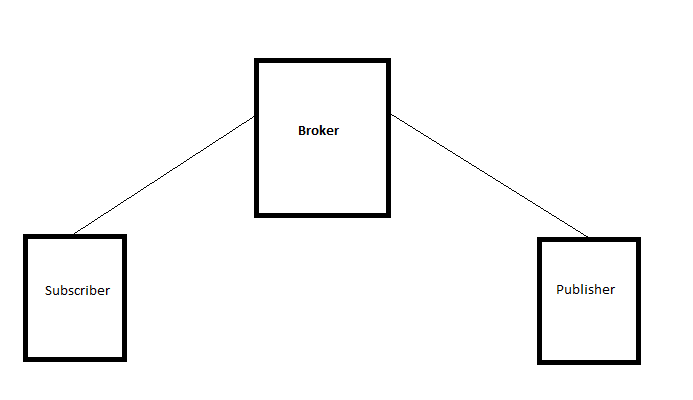
Publisher, publish message to a specific topic and any Subscriber subscribes for that topic receives the message. Broker is the central hub, both Publishers and Subscribers are connected to the Broker and it take care of delivering the message to all the subscribers subscribed for the topic.
Brokers
We can implement our own broker using RabitMQ or Mosca plugin for Node js or any other MQTT brokers available in the market. To experiment it, I used CloudMQTT addon in Heroku. I used Heroku just to manage every thing from one central place.
Dev Environment
I created two set off Node js application, one running in my computer as a publisher and another running in my RaspberryPi as a subscriber. Both have no direct connection instead they are connected to CoudMQTT broker. Below is a test code and nothing related to my Aeroponic system.
Publisher Code
var mqtt = require('mqtt');
var client = mqtt.createClient('<<PortNumber>>', 'm11.cloudmqtt.com', {
    username: '<<UserName>>',
    password: '<<Password>>'
});

client.on('connect', function () { // When connected

    // subscribe to a topic
    client.subscribe('TEMPERATURE_READING', function () {
        // when a message arrives, do something with it
        client.on('message', function (topic, message, packet) {
            console.log("Received '" + message + "' on '" + topic + "'");
        });
    });

    // publish a message to a topic
    client.publish('SET_TEMPERATURE', '24', function () {
        console.log("Message is published");
      });
});
The above code act as a Publisher as well as a Subscriber. For e.g. the above code can be a piece running in Internet and the Pi’s can Publish the Temperature readings in a periodic interval and logged in a central db. We can see the readings via a webapp or which ever the way we need. Also if required we can set a temperature to all the connected RPi’s by publishing a message to topic ‘SET_TEMPERATURE’.
Subscriber Code
var mqtt = require('mqtt'), url = require('url');
var client = mqtt.createClient('<<Portnumber>>', 'm11.cloudmqtt.com', {
    username: '<<UserName>>',
    password: '<<Password>>'
});

client.on('connect', function () { // When connected

    // subscribe to a topic
    client.subscribe('SET_TEMPERATURE', function () {
        // when a message arrives, do something with it
        client.on('message', function (topic, message, packet) {
            console.log("Received '" + message + "' on '" + topic + "'");
           // set the temperature.
        });
    });

});
The code is very minimal and we could achieve an easy communication to all the connected devices. In the above scenario clients are always connected. If you want to end the connection then call ‘client.end()’.
Later I implemented a Broker using Mosca, both scenarios the system worked really well.
RS485 Communication Protocol with Micro Controllers and Raspberry pi
We are in the age of connected devices, devices could talk each other either via RF or wired. In one of my post I explained about Radio Frequency communication using Xbee. In this post lets see how devices can talk each other via wired network. One of the advantage of Wired network is, it is cost effective compare to buying an XBee modules like Xbee pro. I personally prefer Wireless communication as it’s hassle free, just place the devices where ever we need.
In my previous post I explained how to Bootload Atmega16A and program it using Arduino. Next step is to establish the communication between the Micro controllers and Raspberry pi. In this case my Raspberry Pi is acting as the central hub that talk to other controllers and collect data or issue command to do some job.
RS 485 Protocol
I better leave it to Wikipedia to give a detailed explanation of the protocol. In brief using RS485, devices can communicate Full duplex or Half duplex. I used a Half duplex communication. So it’s a protocol, how do we implement the protocol in our hardware, there is a chip Max485 from Maxim. This chip can establish a half duplex communication.
Max485 Pin configuration
Max 485 is a 8 pin chip as shown below. It’s a DIP chip and SMD have different pin layout.
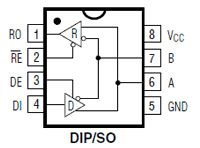
Image from Maxim site
Pin 1 – RO: It’s the Data-In pin, devices can read data from the bus using this pin. Rx pin of the Micro controllers should connect to this pin.
RE and DE: Set this pin to Logical High to transmit any data to the bus. Set this pin to Low to receive data from the bus.
Pin 4 DI: Devices can transmit data via this pin. This pin should be connected to the Tx pin of the device.
Pin 8 and 5 – VCC and GND: To power the chip, VCC should be 5 volt.
Pin 7 and 6 – A and B: Here we connect the data line. A should connect to the A Pin of the next Max 485 and B with B.
Connection Diagram
The below picture will illustrate how to connect all the devices together.

Image created using Fritzing
As per the diagram, if RPi want to transmit any data. We should set a high voltage on GPIO 18 and issue a serial write. All other devices in the network will be in listening mode and can read data using serial read, if any other device wanted to transmit data, then issue a Logical High to RE DE pin and will get promoted as a master and transmit data via serial write.
Now it’s up to you to program it and do some cool things with it.
Bootloading Atmega16 with Arduino Uno
Last two days I was experimenting with Microcontrollers and researching about how to write applications on it. I bought one Atmega16A and decided to use Arduino bootloader. So that I can write programs using Arduino IDE and syntax. This post explains about how to bootload Atmega16. I didn’t had any prior experience with Arduino, I have a uno sitting at my desk for quite a long time but never used it. Last three nights I was learning more about Arduino coding and learning about boards config and other stuffs.
Software Setup for Bootloading
I followed the steps posted by Sudar in his blog, please go through the post before reading further. Here I will write some points I had to do to do to complete the bootloading process.
Arduino IDE version: To run the core created by Sudar, we need the IDE version 1.0.x. I have the latest version 1.6.3. There are some differences in configuring boards.txt from 1.0 to 1.6. I tried to rewrite the boards.txt as per 1.6.* standard but it didn’t like it. So I downloaded the old version 1.0.6 from Arduino website. If you have 1.6.* already installed then better download the zip file and extract to a folder. That way you can use 1.6 and 1.0 in same machine.
Adding Boards and Variants: Adding boards to the sketch book folder didn’t work for me, may be I didn’t get it clearly. So I did the below steps.
-
Go to the Arduino’s hardware folder, <<IDE install location of IDE>>/hardware/arduino/ and open boards.txt.
-
Copy the contents of Atmega16 boards and pasted to the boards.txt opened in Step 1.
-
Create a new folder named mega16 under <<IDE install location>>/hardware/arduino/variants and paste the “pins_arduino.h” created for Atmega16.
-
Open Arduino IDE 1.0.* and goto Tools->Boards and you should see as shown below
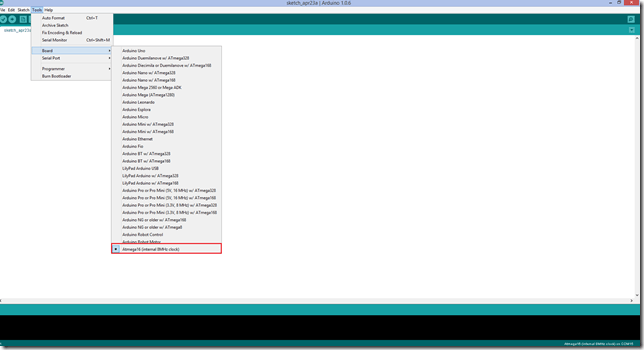 If if you can see the new board under Boards menu as shown above then we successfully setup the software environment for bootloading.
 -
Goto File->Examples->ArduinoISP, it will open a new window with ArduinoISP sketch. Before uploading the sketch make sure you have selected Arduino Uno in Tools->Boards->Arduino Uno. Now upload the sketch to your Uno. Now we setup our Uno as a programmer.

Hardware Setup for Bootloading
Here again I followed the pin connection detailed in Sudar’s post. Please follow exactly the way mentioned in the post. Also don’t forget to connect the capacitor between Reset and GND of Arduino.
Note: If you try to upload any sketch to Arduino Uno when the Capacitor is connected, IDE will throw errors. So before doing any thing with your Arduino remove the Capacitor.
Bootloading
Follow the below steps to burn the bootloader
-
We have to set our Arduino Uno as an ISP. To do that go to Tools->Programmer and select “Arduino as ISP”
-
Set the bootloader from Tools->Boards and select the newly added board, ie. Atmega16(internal 8mhz clock).
-
Now burn the bootloader by selecting “Burn Bootloader” under Tools menu.
If every thing works fine, you could see a success message at the bottom portion of the IDE.
Uploading Sketches to Atmega16
Next we need to upload some sketches to newly bootloaded Atmega16. For this I used the new version of Arduino IDE 1.6.3, If you want you can use IDE 1.0.*. Some how the old IDE is very slow for me, so I decided to use the new version. Skip the below step if you decided to use the old 1.0.* version.
Follow the steps to use the Atmega16 board in new version
-
Create a new folder under <<Installed location of IDE V1.6.*>>/hardware. You can name the folder anything, I named as Mega16.
-
Under Mega16 folder create another folder called “avr”.
-
Inside the avr folder copy the boards.txt and create another folder named variants and copy “pins_arduino.h” inside variants folder.
-
Open boards.txt and add the line “atmega16-8.upload.tool=arduino:avrdude”
Follow the below steps to upload sketch(Common for all versions of IDE)
-
Open up the IDE and load Blink from File->Examples->Basic.
-
Edit the code so that you are writing to a pin of Atmega16, here I write to Digital 6, it’s physical pin 20.
-
Before uploading the sketch Choose Atmega16(internal 8 Mhz) from Tools->Boards.
-
Choose “Upload using Programmer” from File menu.
Just connect a LED with a Resistor to Physical pin 20 of Atmega16 and you can see the LED blinking.
Now I can write any thing to the Atmega16 and connect to sensors or any thing I wanted to do without Arduino.
Water Level Sensor for my Aeroponic– First Experiment in PCB design
Last couple of weeks in my free times I was learning PCB design and basic Electronics. I studied basic electronics in College but that’s only to pass the exam. A couple of weeks ago, when I decided to learn basics of electronics, the only component I knew was Resistor. Rest I learned from YouTube and other blogs.
Next step was PCB Design, I went through so many YouTube videos and created so many designs using Eagle CAD (used Community Edition) and redo the design in several different ways. After some days of experiments with Eagle I was some what confident to design something that I could use in my Aeroponic system, a Water Level sensor. I cant design an electronic circuit but I learn to read Schematic designed by experts in Electronics.
I started searching for a right design for me to try out. I prototyped several design in breadboard but none of them worked as per my requirement. After several trial and error I finalized the below design I copied from one of the site, unfortunately I don’t know from where I copied the schema. (I will refer the url if I get that page again.)

Note: Above is a schema I created in Eagle cad, original author’s schema was very beautiful. Also I didn’t spend much time in schema, my goal was to design the PCB.
PCB Design
The next step was my area of interest, the PCB design. Below is the design I came up after several rearrangements of components.

PCB Etching
There are so many videos in YouTube detailing the PCB Etching process. I decided the approach of Laser printing the design on a glossy paper and doing thermal transfer to copper clad board. My friend Vinod, took a print out of the design on a Magazine cover. Yesterday night, with the help of Pressing iron and some Ferrous chloride, I created my first PCB. It’s a WOW moment for me.

I dill the holes using my Dremel rotatory tool. I added a Silk Screen as well. Printed the top screen in mirror mode on a Glossy paper and transfer to the board using my Wife’s Nail polish remover, It worked, you can see the silk screen in the below picture.
Final Board

Yes it’s a pretty simple circuit but I learned a lot from all these experiments.
Connecting to Raspberry Pi
The sensor will give two outputs, warning and critical status. Those two yellow wires are the sensor outputs, connect those to two GPIO pins of my pi. This is what I programmed.
1. Warning: The system will send a mail to me saying the water is below warning level.
2. Danger/Critical: The system will send a mail as well as shutdown the Submersible pump. If the pump run dry for a minute or two it will damage the pump.
3. When some one fill the tank with water above warning level, the motor will resume running and send a mail to me saying water level is fine.
Raspberry Pi controlled Aeroponic System V2
Last one and half months I was working on my Aeroponic System V2. In this post I will dissect the system and will see each component and what it does. I would like to thank my wife for her tremendous support for helping me in every phase of the development, also she takes care of the germination process and replanting to the system.
Working of the Aeroponic system (video)
Vertical Growing Medium

Here the plants root are growing in Air and the nutrient mixed water will flow through the pipe in periodic intervals. As of now we are growing Spinach and Amaranth.
Irrigation pipes
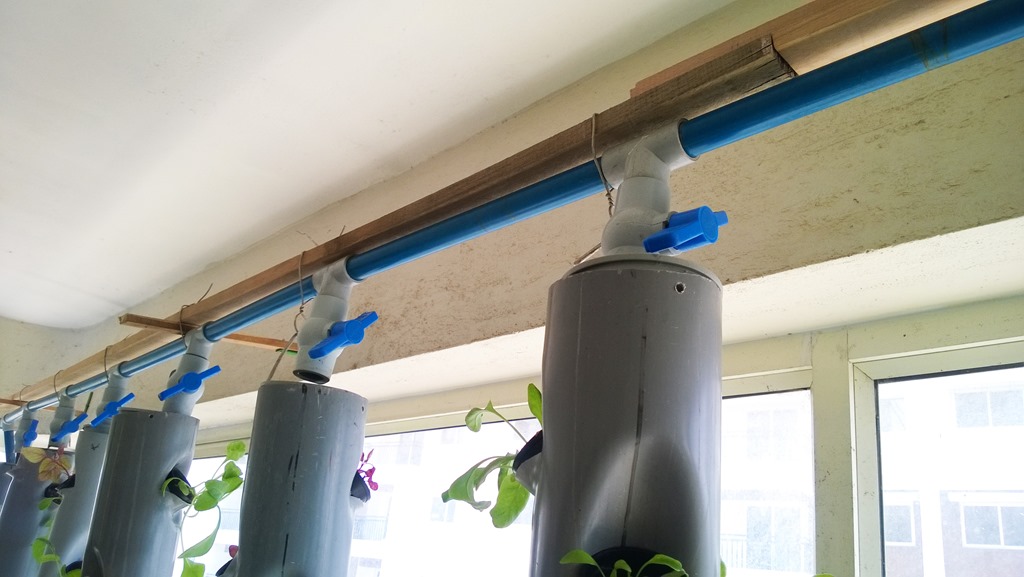
I fixed a valve to control the water flow. Without this valve the first outlet receives more water because of gravitation and subsequent outlet receives less and the last one receives none. With this valve I can adjust the water flow and helps to get water to each outlet equally.
Reservoir

Normal hydroponic systems use water tanks to hold the nutrient mixed water. I decided to buy one tank as well but the tank is 1 feet tall, that means the vertical growing medium must be place above the tank level and I will loose 1.5 feet from each growing medium. I have total 6 towers and in total I will loose 9 feet of growing medium and will reduce around 30 cups.
After a lot of thoughts I come up an idea to use 6 inch pipe as the reservoir. With simple math I realize that I could store more than 50 lts of water in a 10 feet 6” pipe.
The reservoir has a Submersible pump that can pump 12000 liters per hour. It also have a wave maker to mix Nutrients or pH modifier agents.
Nutrient Feeder
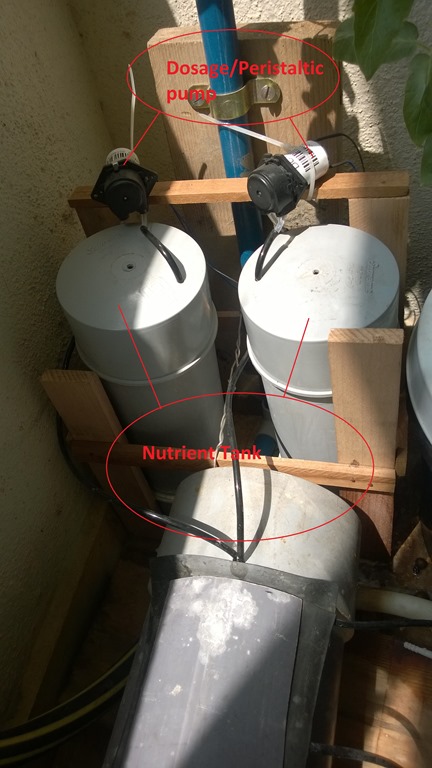 |
I made two containers from a 4 inch PVC pipe and connect two dosage pumps to pump nutrient from Nutrient tank to Reservoir. I can add Nutrients by pressing a push button in the control board or via the mobile app. For each press of Push button will add 10 ml of nutrients. Through mobile I can add any amount of Nutrients and can do it from any where from the world. Controller system will automatically activate the wave maker after adding nutrients, so the nutrients will get mixed well.
|
Controller System
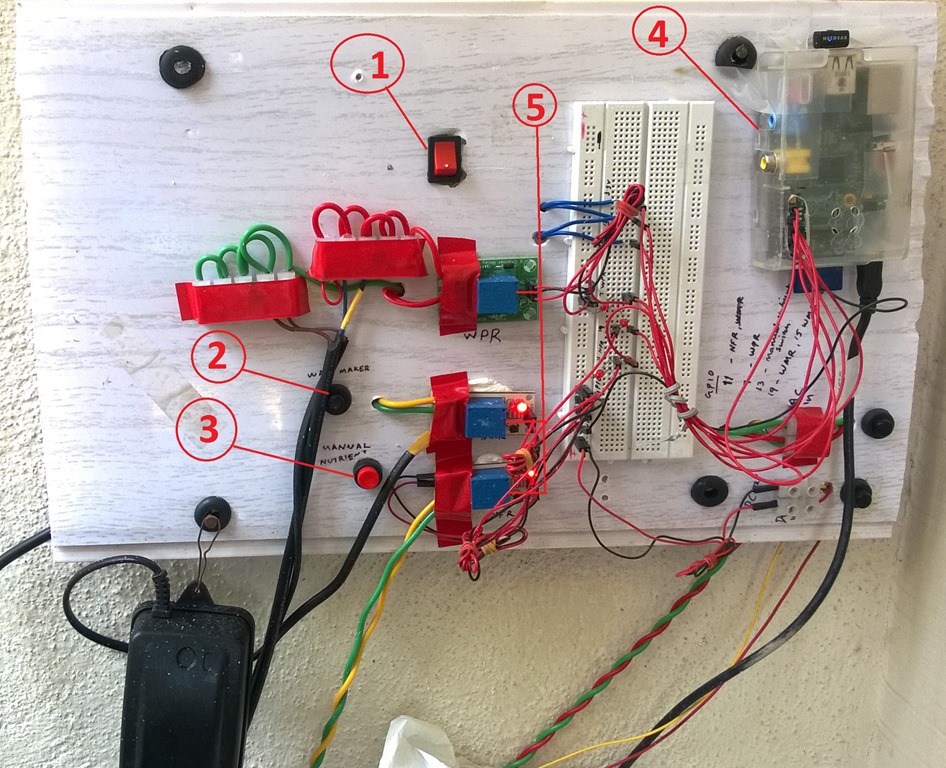
The controller system has different components, I numbered each component for ease of explanation.
1. Water Pump switch: Water pump will run in a periodic interval controlled by application running in Rasbperry pi. In some situation I wanted to run the pump immediately without waiting for the interval. With this switch I could run the motor immediately. I can also activate pump from my mobile application as well.
2. Wave Maker switch: As I said earlier the reservoir is equipped with Wave maker to mix Nutrients or pH modifiers. I could activate Wave maker any time by pressing the push button. I used this mostly after adding pH modifiers. Nutrient feeding system will automatically switch on Wave maker after adding nutrients.
3. Nutrients Feeder switch: This push button switch will add 10 ml of nutrients to the reservoir. If I wanted to add more nutrients I could do that via the mobile application.
4. Raspberry pi: The brain of my Aeroponic system. Each and every component is connected to this device. The controller program is written in Node js.
5. Relays: component to switch on/off each hardware like Water pump, Wave maker, etc.
The system is powered with a 12v DC and 240v AC. Each power source can be switched off separately by the two buttons below the Raspberry pi.
After the success of my aeroponic system and it’s controller, I did several modifications to the controlling system. See this post for the updated controller based on Arduino
Hydroponic controller system controlled by Raspberry Pi
In one of my previous post I explained the working of my Aeroponic system. As I mentioned earlier, I wanted to automate one of the recurring task. Yes, adding nutrients. Also I created an Aeroponic system with multiple pillars, I will post another video of my new aeroponics later.
Last week-end I was working on the controller system for my new Aeroponic system. The new system includes the controller system to add nutrients to the reservoir. The system includes two peristaltic pump and a wave maker to mix the nutrient. I can add nutrients via the mobile app I created or by pressing the red button on the board. From mobile device I can specify how much milliliter of nutrients I wanted to add. By Pressing the button I can add a predefined quantity, say 10 ml for each button press.

I will post more updates soon…
Connecting XBee to Raspberry pi
Last one week I was doing some research in RF communication and controlling devices using RF. So what am I going to control here, I wanted to control the water pump running in my hydroponic reservoir without running wires from my raspberry pi. This way I can extend my hydroponic system to more balconies without buying extra RPi, a single RPi will send a switch on/off command and the RF client will switch on/off the motor via a relay. Also I don’t need to setup a wifi network in my controller RPi’s.
My research for RF communication platform leads to Zigbee protocol and XBee component. XBee is a very popular Zigbee complaint product from Digi. For my testing I got two XBee Pro S2 and two XBee explorer. The explorer I bought uses USB to A/B cable, if you are buying it make sure buy A/B cable as well. You will get micro usb explorer as well.
To configure the XBee’s I use the X-CTU software from Digi, you can download it free from Digi’s website. I use the Legacy X-CTU for configuring my modules and Next Generation X-CTU for issuing commands. Configuration is pretty simple and so many sites will walk you through it. I configure my XBee’s as shown below. One XBee act as Coordinator and enabled API mode and another XBee act as router and enabled Router AT.
XBee Coordinator
-
Modem: XBP24-ZB
-
Function Set: ZIGBEE CORDINATOR API
-
PAN: <set a pan id, say 123>
-
Destination Address Low: FFFF
XBee Router
-
Modem: XBP24-ZB
-
Function Set: ZIGBEE ROUTER AT
-
PAN: <set a pan id, say 123>
-
Destination Address Low: 0000
I left all other settings as default.
Connecting to Raspberry pi
For testing I connected the XBee coordinator to my computer and XBee Router to my RPi. In RPi I created a simple node app to send some text message to coordinator. Below diagram will show you, how I connected Router XBee to my RPi. Here we use serial communication between RPi and XBee. RPi has only one set of serial communication pin and by default it’s configured for console I/O, there are so many tutorial out there to free it up and I use one from them.

image developed using Fritzing
I connected the XBee directly using jumper wires, the above diagram is just for illustration for that I use the breadboard.
Connect RPi 3.3 volt to XBee 3.3 volt pin, Ground to XBee ground, Rx to Xbee Tx (Data Out), Tx to XBee Rx (Data In).
Sending some data from Router Xbee to Coordinator
Now I wanted to send some data from Router XBee connected to my RPi to the coordinator connected to my Computer.
I created a small app using node js, below is the code. To run the code we have to install two node modules.
- xbee-api: npm install xbee-api
- serialport: npm install serialport
var util = require('util');
var SerialPort = require('serialport').SerialPort;
var xbee_api = require('xbee-api');

var C = xbee_api.constants;

var xbeeAPI = new xbee_api.XBeeAPI({
    api_mode: 1
});

var serialport = new SerialPort("/dev/ttyAMA0", {
    baudrate: 9600,
    parser: xbeeAPI.rawParser()
});

serialport.on("open", function () {
    var frame_obj = {
        type: 0x10,
id: 0x01,
        destination64: "0013A200407A25A7",
        broadcastRadius: 0x00,
        options: 0x00,
        data: "Hello world"
    };

    serialport.write(xbeeAPI.buildFrame(frame_obj));
    console.log('Sent to serial port.');
});

serialport.on('data', function (data) {
    console.log('data received: ' + data);
});


// All frames parsed by the XBee will be emitted here
xbeeAPI.on("frame_object", function (frame) {
    console.log(">>", frame);
});
When I run the above node app, I can see the data receiving in my Coordinator’s X-CTU app. I could also send a Remote AT (0x17) command to the router to one of the Digital pin and could turn On/Off a LED.
Seems like the communication is working fine. Let’s see what I can come up next.
 |
Scan using your mobile phone and access/share the post from your phone. |


 Sony Arouje