Archive for the ‘.NET’ Category
NDepend a .NET Code Scanner
This post is a very brief overview of NDepend, a static code analysis tool. In this post am just touching some key feature of NDepend. I didn’t have much idea about NDepend until Patrick Smacchia introduced it to me recently. After I got the pro license I did a quick glance of NDepend, I felt like it’s a code scanner for developers just like body scanner for doctors :).
Installation of NDepend is very simple, download the zip from NDepend site with the secret code. Just unzip and drop the license xml file, that’s it. Tools provides a VS addin as well. If you want to add NDepend to VS IDE then install NDepend.Install.VisualStudioAddin.exe. Open the Visual Studio and you can see the NDepend Menu.
I thought of writing this blog after going through the features of NDepend. First I thought I will analyze any of my existing code but I didn’t feel comfortable in analyzing old codes. One reason is, I might have forgotten how the function calls and the dependency structure. So I decided to write a new application and run NDepend on it, so that I can benchmark it better. I wrote a Twitter Public timeline reader for WP7 to test NDepend. You all can see the details of that project in my previous post.
Now it’s time to go through the code analysis using NDepend. The time to gather the data for code analysis is pretty fast, NDepend didn’t make me wait for long. The first thing I wanted to see is the Dependency Graph, below is the graph it generated
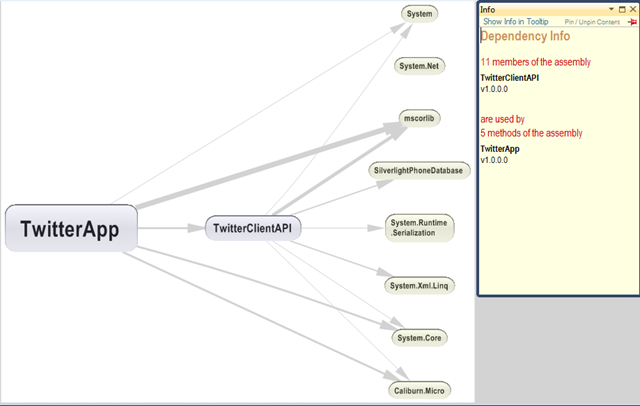
You might be noticed that some arrow is in different size, this is what the context sensitive help of NDepend says
On this graph, the thicknesses of edges are proportional to the strength of coupling in terms of number of members involved
How cool it is, by just looking at this graph I can visualize how much is the coupling between the assemblies. Clicking on the arrow will give you an info window on the right side and will provide the details of the coupling.
One of the excellent part of this tool is, it have a very good help, you will never get stuck any where. For e.g. below is the class browser of NDepend
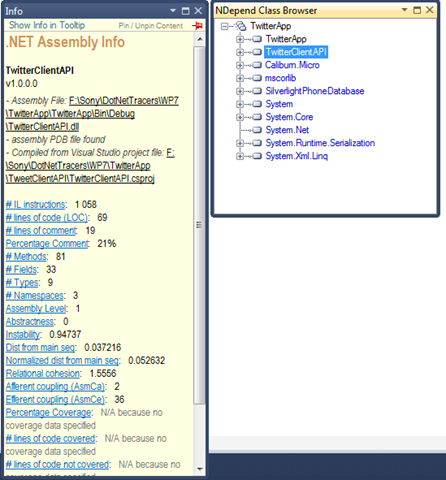
By clicking on the assembly in the NDepend class browser will display the details about the assembly. You may not get each and every details, don’t worry all those labels are hyperlinked to NDepend site and they provided decent help document.
CQL
One of the well know feature of NDepend is Code Query Language (CQL). It’s a new experience for me to write a SQL kind of query against assembly. For E.g. I can write a query like below to find out the unused methods in my project
SELECT TOP 20 METHODS WHERE
MethodCa == 0 AND
!IsPublic AND !IsEntryPoint AND
!IsExplicitInterfaceImpl
AND !IsClassConstructor AND
!IsFinalizer
When you run NDepend against your assemblies it will generate a standard list of queries to analyze your code. If you feel like it’s not sufficient then the tool provided the flexibility to you to write your own CQL query. It provides a very good query editor with intelisence. You can go to NDepend site to get more help on CQL.
I was so amazed about this query functionality of NDepend, I just wanted to know how the NDepend query the assembly. My search leads to Patrick’s reference about Cecil, one of the open source project to inspect libraries in ECMA CIL format. With the help of Cecil they implemented the CQL, a wonderful piece of functionality in NDepend.
Dependency Matrix
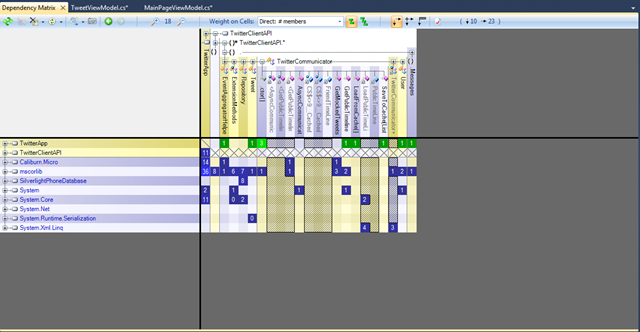
Its a very handy feature of NDepend, it will give you matrix structure of the Assembly dependency as shown below

In this matrix I can see dependency in a matrix format. I clicked on the intersection point of TwitterApp and TwitterClientAPI (TwitterApp is on left and TwitterClientAPI is on the top). As you can see the tool give me a plain english description that 5 Methods of TwitterApp is using 11 members of TwitterClientAPI. I was curious and wanted to see which are all the methods of my TwitterClientAPI.TwitterCommunicator class is used by TwitterApp.
I only wanted to do is just expand the TwitterClientAPI on the top and again expand the TwitterCommunicatorAPI as shown below. The matrix shows that TwitterApp is calling GetPublicTimeLine function ones, yes its true. Same like it will display for other functions as well.
As I told earlier in the post, the tool also provides a pictorial Dependency Graph representation. You can get the same dependency graph from the Matrix as well. Right click on the intersection (Colored columns) and say Build a Graph, pretty simple. Below is the screen shot of the Dependency graph of TwitterApp with TwitterCommunicator class
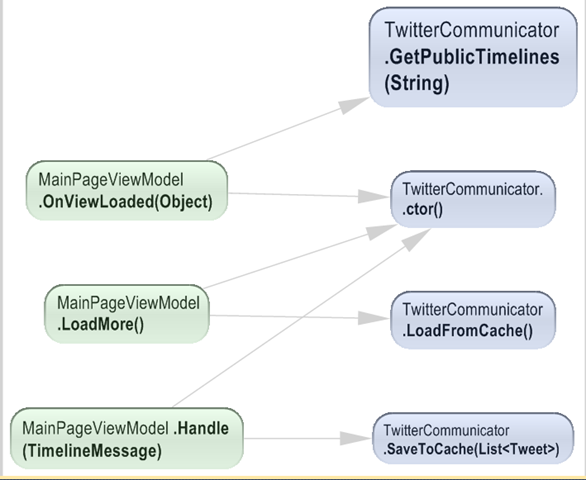
Dependency Matrix provides a more in depth graph. From the screen shot you can see the depth of the description it provides. I don’t think I need to give any more explanation of the above graph. NDepend made your code analysis smooth and simple.
Summary
As I told earlier I just scratched the tip of an iceberg. In this post I left behind so many other features of NDepend, I will add more post about NDepend later. As Scott Hanselman said in his blog Exiting the Zone of Pain, yes NDepend is really a pain reliever. Investing some money to acquire this tool is worth. NDepend have a free trial version for open source projects and Academic purpose. Visit NDepend site for more details.
Twitter Public Timeline reader for WP7 using Caliburn Micro
This is my first app for Windows Phone 7. This application doesn’t have much functionality, it just make a call to Public Timeline rest api to get the tweets. I choose PublicTimeline as it doesn’t requires any Twitter authentication. John Papa have a blog about communicating with Twitter, I used his blog to gather the details to communicate with Twitter. As usual I used my favorite MVVM frame work Caliburn Micro here as well. To kick start with WP7 development using caliburn micro I suggest to download the template from shazaml.com. The template has the CM’s WP7 bootstrapping technique mentioned by Rob Eisenberg in his blog.
Screen shot of my app.
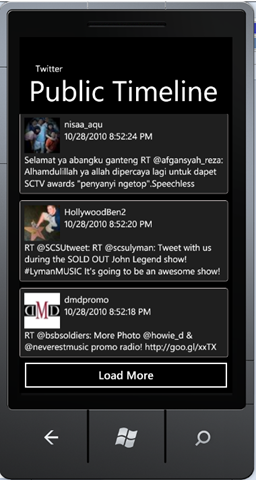
In this app I used Microsoft Reactive Extension (Rx) libraries to make asynchronous call to Twitter. I combined both the Rx and Caliburn micro’s EventAggregator to do Async call and publish the data. Rx works in publisher/subscriber model, Initially I wrote an observer by my self. After I thought why should I reinvent the wheel, as Caliburn Micro has a powerful publisher/subscriber module. So I removed my observer class with EventAggregator shipped with CM. I used Rx here to avoid all the messy code that we need to write to make an async call. Jerome Laban have a blog about Rx library and is a pretty good article to start off with Rx library.
Another functionality I wanted to add to the app was caching facility, that means the app should be able to cache older tweets. Instead of fetching from Twitter we can get it from cache, if user wants to see older tweets. I was thinking of serializing my Entities to IsolatedStorage and do all the hard work by myself. Before implementing the serialization functionality I did a google search and come accross this codeplex project called winPhone7db. It did a decent job of serializing my entities to Isolated storage. As the name states its gives a feel like we are dealing with db. It encapsulates all the hurdles of communicating with Isolated storage and serialization.
Let’s jump into the details of the app. Below code explains my MainPage view model, it’s not very complicated just like any other basic view model
public class MainPageViewModel:Screen,IHandle<TimelineMessage>
{
    readonly INavigationService navigationService;

    public MainPageViewModel(INavigationService navigationService)
    {
        this.navigationService = navigationService;
        EventAggregatorHelper.EventAggregator.Subscribe(this);
        this.Tweets = new ObservableCollection<TweetViewModel>();
    }
    public ObservableCollection<TweetViewModel> Tweets { get; private set; }
    protected override void OnViewLoaded(object view)
    {
        base.OnViewLoaded(view);
        TwitterCommunicator twitterCommunicator = new TwitterCommunicator();

        twitterCommunicator.GetPublicTimelines("sonyarouje");
    }

    public void LoadMore()
    {
        TwitterCommunicator twitterCommunicator = new TwitterCommunicator();
        this.CreateUI(twitterCommunicator.LoadFromCache());
    }
    private void CreateUI(List<Tweet> tweets)
    {
        foreach (Tweet tweet in tweets)
        {
            TweetViewModel tweetViewModel = new TweetViewModel(tweet);
            this.Tweets.Add(tweetViewModel);
        }

    }

    public void Handle(TimelineMessage message)
    {
        if (message.Tweets != null)
        {
            this.CreateUI(message.Tweets);
            TwitterCommunicator twitterCommunicator = new TwitterCommunicator();
            twitterCommunicator.SaveToCache(message.Tweets);
        }
    }
}
I inherited the view model from Screen so that I can make use of OnViewLoaded method. The async call to Twitter orginates from onViewLoaded method. Also you can see that this viewmodel is subscribed to TimelineMessage. This is to get the notification once the Reactive Extension completes it’s async call to Twitter using webclient.
TweetViewModel is another view model to display individual tweets. All the individual TweetViewModel get added to an observable collection called Tweets and caliburn micro internally bind the respective view to an ItemsControl in my MainPageView.
Now let’s go through the Twitter communicator
public class TwitterCommunicator
{
    private readonly string FriendTimeLine = "http://twitter.com/statuses/friends_timeline/{0}.xml?count=50";
    private readonly string PublicTimeLine = "http://api.twitter.com/1/statuses/public_timeline.xml?screen_name={0}";

    public void GetPublicTimelines(string userName)
    {
        string uriString = string.Format(PublicTimeLine, userName);
        Uri uri = new Uri(uriString);
        WebClient wc = new System.Net.WebClient();
        var o = Observable.FromEvent<DownloadStringCompletedEventArgs>(wc, "DownloadStringCompleted")
                              .ObserveOn(Scheduler.ThreadPool)
                              .Select(newString => newString.EventArgs.Result);

        o.ObserveOn(Scheduler.Dispatcher).Subscribe(s => EventAggregatorHelper.EventAggregator.Publish<TimelineMessage>(new TimelineMessage(LoadPublicTimeLines(s.ToString()))));
        wc.DownloadStringAsync(uri);
    }

    public List<Tweet> LoadFromCache()
    {
        Repository repository = new Repository();
        return repository.GetFromCache<Tweet>();
    }

    public void SaveToCache(List<Tweet> tweets)
    {
        Repository repository = new Repository();
        repository.Add<Tweet>(tweets);
        repository.SaveChanges();
    }

    private List<Tweet> LoadPublicTimeLines(string statuses)
    {
        try
        {
            XElement xmlElement = XElement.Parse(statuses); ;
            XNamespace ns = "";
            var twitterQuery = from msg in xmlElement.Descendants(ns + "status")
                               let sender = msg.Element(ns + "user")
                               select new Tweet
                               {
                                   TwitterId = (msg.Element(ns + "id").Value).ToLong(),
                                   CreatedAt = (msg.Element(ns + "created_at").Value).ToDateTime(),
                                   Text = msg.Element(ns + "text").Value,
                                   User = new User
                                   {
                                       UserId = (sender.Element(ns + "id").Value).ToLong(),
                                       Name = sender.Element(ns + "name").Value,
                                       ScreenName = sender.Element(ns + "screen_name").Value,
                                       Description = sender.Element(ns + "description").Value,
                                       Location = sender.Element(ns + "location").Value,
                                       ProfileImageUrl = sender.Element(ns + "profile_image_url").Value,
                                       Url = sender.Element(ns + "url").Value,
                                       Protected = (sender.Element(ns + "protected").Value).ToBool(),
                                       FollowersCount = (sender.Element(ns + "followers_count").Value).ToLong()
                                   }
                               };
            List<Tweet> statusList = twitterQuery.ToList<Tweet>();
            return statusList;
        }
        catch (Exception ex)
        {
            return null;
        }
    }
You need to add Microsoft.Phone.Reactive assembly to avail the functionality of Rx. Also I installed the Rx setup for Silverlight 4 and added System.Observable reference shipped with the setup.
The function GetPublicTimeLines place the async call to Twitter. As I said before I use Rx to handle the async call and notify the subscriber once it’s done. I use the WebClient class to communicate with Twitter. I choose WebClient as it is very easy to use shipped with WP7, also am not doing any complex calls to twitter that requires authentication. The below code will get executed once the async call is completed.
o.ObserveOn(Scheduler.Dispatcher).Subscribe(s => EventAggregatorHelper.EventAggregator.Publish<TimelineMessage>(new TimelineMessage(LoadPublicTimeLines(s.ToString()))));
The above code does publication of the result. Before publishing I processed the result we got from twitter and converted the xml message to Tweet entity. Conversion is done by LoadPublicTimeLine method. Once the processing is done I published the message using EventAggregator.
Now Let’s see the caching part. I created a repository class to communicate with SilverlightPhoneDatabase. Below is the class I created for it.
using System;
using System.Linq;
using System.Collections.Generic;
using SilverlightPhoneDatabase;
namespace TwitterClientAPI
{
    public class Repository
    {
        private const string DATABASENAME = "TweetsCache";
        Database _db;
        private Database TweetDataBase
        {
            get
            {
                if (_db == null)
                {
                    if (Database.DoesDatabaseExists(DATABASENAME) == false)
                    {
                        _db = Database.CreateDatabase(DATABASENAME);
                        _db.Save();
                    }
                    else
                    {
                        _db = Database.OpenDatabase(DATABASENAME);
                    }
                }

                return _db;
            }
        }

        private Table<T> GetTable<T>() where T : class
        {
            Database db = this.TweetDataBase;
            if (db.Table<T>() == null)
            {
                db.CreateTable<T>();
            }

            return db.Table<T>();
        }

        public void Add<T>(List<T> entities) where T : class
        {
            Table<T> table = this.GetTable<T>();
            foreach (T entity in entities)
            {
                table.Add(entity);
            }
        }

        public void Add<T>(T entity) where T : class
        {
            Table<T> table = this.GetTable<T>();
            table.Add(entity);
        }

        public void SaveChanges()
        {
            this.TweetDataBase.BeginSave((s)=>
                {
                    if (s.Error == null)
                    {
                        //save unsuccessful, take necessary action
                    }

                });
        }

        public List<T> GetFromCache<T>() where T:class
        {
            try
            {
                var query = (from tCache in this.TweetDataBase.Table<T>() select tCache);
                List<T> cachedData = query.ToList<T>();
                return cachedData;
            }
            catch (Exception ex)
            {
                return null;
            }
        }
    }
}
I used the same generic repository pattern explained in one of my previous post. When I wrote this app I spend most of the time in investigating about different methods of implementing Async call and caching of tweets. Developing an app for WP7 is pretty simple I spent less than 2 hrs to finish the app. Apart from the development, I spent some time to learn Rx. Through this app I got some insight of WP7 development, Reactive Extension, SilverlightPhoneDatabase and more attached to Caliburn Micro :).
If you really want to do some decent job using Twitter API then I suggest Hammock. It’s a REST library to consume REST Services. The library also supports OAuth authentication and can be used to connect to Twitter. Sudheer has blog series explaining about authentication with Twitter using Hammock. Also Scott Gu has a very good blog about the overview of WP7 development.
To run the source you need to have WP7 Development tools. You can download the tools from here.
Download Source code.
Scalable Silverlight app using MEF and Caliburn Micro
In this post I am going to give a brief insight of my experiment with MEF and Caliburn Micro. I am always a big fan of plug-in application model. When I go through the MEF I was so impressed and want to try as it is similar to my favorite area (plugin model). As usual I used caliburn micro here as well.
The app I developed is just for demo purpose and there is no business value. In my app I display couple of user controls and all are loaded by MEF. The app also demonstrate the powerful event handling provided by Caliburn micro. With the help of MEF and Caliburn micro we can build a very powerful scalable silverlight app.
Below is the screen shot of my app

As you can see my UI is not very fancy, because my intention was to try how MEF will work in conjunction with caliburn micro. The first two expanders wont do any job other than displaying some thing to user. The Display Text and Font selection will do some demonstration of Event publishing. The user selected Font properties will get applied to the Text in the Display Text expander.
I implemented an interface called IView to make all the view models satisfy MEF exports. Below is the interface.
namespace SilverlightClassLib.Common
{
    [InheritedExport]
    public interface IView
    {

    }
}
A blank interface decorated by and Attribute called InheritedExport. Which ever the class implements this interface will be considered for Exporting. You can get more details about this approach from Brad Abrams blog. In this demo all my viewmodels implemented IView interface. MEF will gather all my Exported ViewModels and Caliburn micro will intern load the View for the view model.
I compose my UI in MainPageViewModel.cs as shown below. To compose the ui you have to add reference to assembly System.ComponentModel.Composition and add using’s to System.ComponentModel.Composition.Hosting and System.ComponentModel.Composition
namespace MEFCaliburnMicroTracer.ViewModels
{
    public class MainPageViewModel:PropertyChangedBase
    {
        public MainPageViewModel()
        {
            var catalog = new PackageCatalog();
            catalog.AddPackage(Package.Current);
            var container = new CompositionContainer(catalog);
            container.ComposeParts(this);
        }

        [ImportMany(AllowRecomposition=true)]
        public ObservableCollection<IView> importedViews { get; set; }
    }
}
In the constructor we load the current xap file to MEF container. The exported part will get added to property which is decorated with ImportMany attribute. In this case it’s ImportedViews property. I set AllowRecomposition to true to load exported parts if we do any async loading of xap’s. In this case there is no parameter required as we are not doing any async loading.
A Listbox In the MainPageView is binded to importedViews property. This listbox is responsible of displaying all my Views.
The greatest advantage of MEF is, we can add or remove new functionality without affecting the existing modules. And the powerful EventAggregator in Caliburn micro will help to enable loosely coupled interaction between the modules.
Download Source
Generic Entity Framework Repository with Eager Loading
In this post am going to explain how we can write Generic repository for Entity framework. The implementation is based on the Repository pattern. Inspired by one of the blog by hibernatingrhinos
Below code explains the Interface I used for creating the repository
using System;
using System.Collections.Generic;
using System.Linq;
using System.Linq.Expressions;
namespace Generic.Repository.Repository
{
    public interface IRepository
    {
        IQueryable<TEntity> GetQuery<TEntity>() where TEntity : class;
        IList<TEntity> GetAll<TEntity>() where TEntity : class;
        IList<TEntity> Find<TEntity>(Expression<Func<TEntity, bool>> criteria) where TEntity : class;
        void Add<TEntity>(TEntity entity) where TEntity : class;
        void Attach<TEntity>(TEntity entity) where TEntity : class;
        void SaveChanges();
        bool EnableEagerLoading { get; set; }
    }
}
I only included only limited functionality to this Interface. You can extend the interface to add more functionality. Let’s see the implementation
using System;
using System.Collections.Generic;
using System.Data.Objects;
using System.Linq;
using System.Reflection;
namespace Generic.Repository.Repository
{
    public class GenericRepository:IRepository
    {
        string _connectionString = string.Empty;
        public GenericRepository(string connection)
        {
            _connectionString = connection;
        }
        #region Private methods
        private GenericContext _context = null;
        private GenericContext Context
        {
            get
            {
                if (_context == null)
                {
                    _context = GenericContext.GetContext(_connectionString);
                    _context.ContextOptions.LazyLoadingEnabled = false;
                }
                return _context;
            }
        }
        private IList<TEntity> LoadNavigationFields<TEntity>(IList<TEntity> entities) where TEntity : class
        {
            foreach (TEntity entity in entities)
            {
                PerformEagerLoading<TEntity>(entity, this.Context);
            }
            return entities;
        }
        private TEntity LoadNavigationFields<TEntity>(TEntity entity) where TEntity : class
        {
            PerformEagerLoading<TEntity>(entity, this.Context);
            return entity;
        }
        private void PerformEagerLoading<TEntity>(TEntity entity, ObjectContext context) where TEntity : class
        {
            PropertyInfo[] properties = typeof(TEntity).GetProperties();
            foreach (PropertyInfo property in properties)
            {
                object[] keys = property.GetCustomAttributes(typeof(NavigationFieldAttribute), true);
                if (keys.Length > 0)
                {
                    context.LoadProperty(entity, property.Name);
                }
            }
        }
        #endregion

        #region Generic Repository methods
        public IQueryable<TEntity> GetQuery<TEntity>() where TEntity : class
        {
            return this.Context.CreateGenericObjectSet<TEntity>();
        }

        public IList<TEntity> GetAll<TEntity>() where TEntity : class
        {
            IList<TEntity> entities = this.GetQuery<TEntity>().AsEnumerable<TEntity>().ToList();
            if (this._enableEagerLoading == false)
            {
                return entities;
            }
            else
            {
                return this.LoadNavigationFields<TEntity>(entities);
            }
        }

        public IList<TEntity> Find<TEntity>(System.Linq.Expressions.Expression<Func<TEntity, bool>> criteria) where TEntity : class
        {
            IList<TEntity> entities = this.GetQuery<TEntity>().Where(criteria).ToList();
            if (this._enableEagerLoading == false)
            {
                return entities;
            }
            else
            {
                return this.LoadNavigationFields<TEntity>(entities);
            }
        }

        public void Add<TEntity>(TEntity entity) where TEntity : class
        {
            this.Context.CreateGenericObjectSet<TEntity>().AddObject(entity);
        }
        public void Attach<TEntity>(TEntity entity) where TEntity : class
        {
            this.Context.CreateGenericObjectSet<TEntity>().Attach(entity);
        }
        public void SaveChanges()
        {
            this.Context.SaveChanges();
        }

        bool _enableEagerLoading = false;
        public bool EnableEagerLoading
        {
            get { return _enableEagerLoading; }
            set { _enableEagerLoading = value; }
        }
        #endregion
    }
}
The above implementation can be used in most of the CRUD operations. If you have any specific logic for your repository then you can extend it by implementing the IRepository interface. Most of the functionality doesn’t required much explanation except PerformEagerLoading().
Normally we load related entities using LoadProperty in the context or use Include in the Linq query. Both approach wont work here in generic approach as we do not know the properties to do this. I searched a lot to achieve eager loading in a generic mode. But nothing worked then thought of implementing one myself. I haven’t verified the performance of this approach but worked well for my scenario.
The approach I come with is, decorate the related entities with an attribute and use the reflection and iterate through the entity and load it using LoadProperty of context object. Below code will explain my approach.
private void PerformEagerLoading<TEntity>(TEntity entity, ObjectContext context) where TEntity : class
{
    PropertyInfo[] properties = typeof(TEntity).GetProperties();
    foreach (PropertyInfo property in properties)
    {
        object[] keys = property.GetCustomAttributes(typeof(NavigationFieldAttribute), true);
        if (keys.Length > 0)
        {
            context.LoadProperty(entity, property.Name);
        }
    }
}
NavigationFieldAttribute is a new attribute inherited from System.Attribute. You can see the implementation in my source code. For the implementation I used the same db model explained in my previous post.
Let’s write a test to verify our GenericRepository
string connectionString = "Data Source=PROLAPE00700\\SQLserver;Initial Catalog=ImagePublisher;User ID=sony;PWD=sony;MultipleActiveResultSets=True;";

[TestMethod()]
public void GetAllTest()
{
    IRepository genericRepository = new GenericRepository(connectionString);
    genericRepository.EnableEagerLoading = true;
    IList<User> users = genericRepository.GetAll<User>();
    Assert.AreNotEqual(0, users.Count);
}

[TestMethod]
public void FindTest()
{
    IRepository genericRepository = new GenericRepository(connectionString);
    genericRepository.EnableEagerLoading = true;
    IList<User> users = genericRepository.Find<User>(u => u.UserID == 1);
    User user = users[0];
    Assert.AreNotEqual(0, user.UserRoles.Count);
}
You can understand the EagerLoading functionality by setting false to EnableEagerLoading in the FindTest above. If we do so the test will fail as it wont load User.UserRoles.
The advantage of this generic approach is we don’t want to create Repository object for each entity if you want to fetch a different entity in the same function. For e.g
IList<User> users=genericRepository.GetAll<Users>();
IList<Role> roles=genericRepository.GetAll<Role>();
Download the source code
Proxy generation tool for Silverlight (SLSvcUtil.exe) and modify VS Command prompt Path variables
In this blog I am going to explain how to generate web service proxy for silverlight and how to add a new Path to VS 2010 Command Prompt (it might be similar for other version of VS, you all can try it out).
In my Silverlight project I wanted to create a proxy of my wcf service, as usual I asked svcutil to create the proxy for me. To my surprise after adding the generated proxy, my silverlight app is not compiling and started throwing errors like IExtensibleDataObject is not exist in System.Runtime.Serialization……. I couldn’t proceed further and at last prayed to google (to developers google is like a god 🙂 ). Bingo got one post mentioning about a util called SLSvcUtil.exe, available from SL3 onwards, poor me I was not aware of this new guy. I got what I wanted. I could locate SLSvcUtil.exe in C:\Program Files\Microsoft SDKs\Silverlight\v4.0\Tools. I used this new tool and every thing worked well. I am relaxed.
After some time another issue started annoying me was VS 2010 command prompt was not recognizing slsvcutil.exe as a command. I added the SL tools path to the windows environment variable and restarted the machine but no use. My new path is not accepting automatically, The only way to add my path is the dos approach. Type the below command in the VS Command prompt.
path=%path%;C:\Program Files\Microsoft SDKs\Silverlight\v4.0\Tools
I know that it will be stored until my machine reboot. As a developer I need a solution to this, because I may use SLSvcUtil more frequently and adding the path all the time will not work out. As it’s a command prompt so guessed that it will be wrapper to dos command prompt and some one is setting him the paths while opening it. I checked the properties of my VS 2010 command prompt and saw that target is %comspec% /k “”C:\Program Files\Microsoft Visual Studio 10.0\VC\vcvarsall.bat”” x86. I was happy that VS command prompt is getting called from a batch file, so that I can set my path their. I open vcvarsall.bat and figured out that It’s calling other batch files based on your processor. The file content is below
vcvarsall.bat
@echo off
if “%1” == “” goto x86
if not “%2” == “” goto usage
if /i %1 == x86 goto x86
if /i %1 == amd64 goto amd64
if /i %1 == x64 goto amd64
if /i %1 == ia64 goto ia64
if /i %1 == x86_amd64 goto x86_amd64
if /i %1 == x86_ia64 goto x86_ia64
goto usage
:x86
if not exist “%~dp0bin\vcvars32.bat” goto missing
call “%~dp0bin\vcvars32.bat”
goto :eof
:amd64
if not exist “%~dp0bin\amd64\vcvars64.bat” goto missing
call “%~dp0bin\amd64\vcvars64.bat”
goto :eof
—–
—–
—–
As mine is a x86 32 bit processor so I have to look for vcvars32.bat. With a calculated guess I open the Bin subfolder. I was right the file vcvars32.bat was their in the Bin folder. With a quick glance of vcvars32.bat I could make out that he is the guy I was searching. I edited vcvars32.bat and updated my path as shown below
@set PATH=C:\Program Files\Microsoft SDKs\Silverlight\v4.0\Tools;%PATH%
I reopened my Command prompt window and typle SLsvcUtil.exe…. it worked. Now I don’t want to worry about setting the path when ever I do a machine reboot.
POCO Support in Entity Framework 4
In this post I am going to explain a small experiment I did with Entity Framework CTP4. My intention was to create some Entity classes and use it with the code first approach provided with EF4.
Till now I haven’t touched EF because I am not a big fan of auto generated code and config files generated by EF. When I saw some article about the new features of EF that comes with v4 release, especially the code first approach and POCO support. I thought of wetting my hands in EF 4. POCO support in EF 4 was really good, no auto generated codes, no edmx files, you can write pretty clean codes.
Let’s jump into the code. My project is not structured just very plain. Entities, Context and UI,.. every thing in single project. As I said this is just a tracer to see how things works.
Table Structure
CREATE TABLE [dbo].[User](
[ID] [int] IDENTITY(1,1) NOT NULL,
[UserCode] [varchar](10) NOT NULL,
[UserName] [varchar](50) NOT NULL,
[Password] [varchar](50) NOT NULL,
[UserEmail] [varchar](50) NULL,
CONSTRAINT [PK_Users] PRIMARY KEY CLUSTERED
(
[ID] ASC
)WITH (PAD_INDEX = OFF, STATISTICS_NORECOMPUTE = OFF, IGNORE_DUP_KEY = OFF, ALLOW_ROW_LOCKS = ON, ALLOW_PAGE_LOCKS = ON) ON [PRIMARY]
) ON [PRIMARY]
GO
CREATE TABLE[dbo].[ImageComment](
[CommentId] [int] IDENTITY(1,1) NOT NULL,
[CommentDescription] [varchar](max) NULL,
[UserName] [varchar](50) NULL,
[UserId] [int] NOT NULL,
[CommentDate] [datetime] NOT NULL,
CONSTRAINT[PK_ImageComments] PRIMARY KEY CLUSTERED
(
[CommentId] ASC
)WITH(PAD_INDEX =OFF,STATISTICS_NORECOMPUTE =OFF,IGNORE_DUP_KEY=OFF,ALLOW_ROW_LOCKS =ON,ALLOW_PAGE_LOCKS =ON)ON[PRIMARY]
)ON[PRIMARY]
GO
SET ANSI_PADDING OFF
GO
ALTER TABLE[dbo].[ImageComments] WITH CHECK ADD CONSTRAINT[FK_ImageComments_Users] FOREIGN KEY([UserId])
REFERENCES[dbo].[Users] ([ID])
GO
User.UserId is a foreign key in ImageComment.
Entity Classes
public class User
{
    public User()
    {
        this.Comments = new List<UserComment>();
    }

    [Key,StoreGenerated(StoreGeneratedPattern.Identity)]
    public int UserID { get; set; }
    public string UserCode { get; set; }
    public string UserName { get; set; }
    public string Password { get; set; }
    public string UserEmail { get; set; }
    public ICollection<UserComment> Comments { get; set; }
}
public class UserComment
{
    public UserComment() { }
    [Key, StoreGenerated(StoreGeneratedPattern.Identity)]
    public int CommentId { get; set; }
    public string Comment { get; set; }
    public virtual int UserId { get; set; }
    public virtual User User1 { get; set; }
    public DateTime CommentDate { get; set; }
}
Nothing much to explain just plain Entity classes. To add Key Attribute (just above the identity column) I added the System.ComponentModel.DataAnnotations;name space to the above classes. You might think that why I added Key Attribute to the indentity, the reason is EF4 POCO supports on Conventions. In some scenarios it may not identify the key property and will throw error “Unable to infer a key for entity type”. We need to attach [Key] to mark the identity key for EF.
Let’s see the Configuration classes.
using System;
using System.Collections.Generic;
using System.Linq;
using System.Text;
using System.Data.Objects;
using Microsoft.Data.Entity.Ctp;
using System.Data.Entity.ModelConfiguration;
namespace EntityFrameWorkTracer_CodeFirstModel
{
    public class UserConfigurationen:EntityConfiguration<User>
    {
        public UserConfigurationen()
        {
            Property(c => c.UserID).IsIdentity();
            Property(c => c.UserName).HasMaxLength(50).IsRequired();
            Property(c => c.UserCode).HasMaxLength(10).IsRequired();
            Property(c => c.Password).HasMaxLength(50).IsRequired();
            Property(c => c.UserEmail).HasMaxLength(50);
            this.HasMany(c => c.Comments);
            this.MapHierarchy(c => new
            {
                UserName = c.UserName,
                UserCode = c.UserCode,
                Password = c.Password,
                UserEmail = c.UserEmail,
                ID = c.UserID
            }).ToTable("Users");
        }
    }

    public class CommentConfiguration : EntityConfiguration<UserComment>
    {
        public CommentConfiguration()
        {
            Property(c => c.CommentId).IsIdentity();
            Property(c => c.Comment).HasMaxLength(5000);
            this.HasRequired(c => c.User1).WithMany(a => a.Comments).WillCascadeOnDelete().HasConstraint((c, y) => c.UserId == y.UserID);
            this.MapHierarchy(c => new
            {
                CommentId=c.CommentId,
                CommentDescription = c.Comment,
                UserId = c.UserId,
            }).ToTable("ImageComments");
        }
    }
}
The configuration class is the important piece of code here. This configuration class maps the Entity to the respective tables. We can also specify the meta property of the column like Required property, size of the field, etc.
You can see one important line of code in CommentConfiguration (marked in bold italics). It specifies the relation between UserComment and User table.
Object Context class
The derived object context class is used of Saving and Retrieving data from the db.
using System;
usingSystem.Collections.Generic;
usingSystem.Linq;
usingSystem.Text;
usingSystem.Data.Objects;
usingSystem.Data.EntityClient;
namespaceEntityFrameWorkTracer_CodeFirstModel
{
public classAWModel:ObjectContext
{
publicAWModel(EntityConnection connection)
: base(connection)
{
}
publicIObjectSet<User> User
{
get{ return base.CreateObjectSet<User>(); }
}
}
}
UI Code
using System;
using System.Collections.Generic;
using System.ComponentModel;
using System.Data;
using System.Drawing;
using System.Linq;
using System.Text;
using System.Windows.Forms;
using System.Data.SqlClient;
using System.Data.Entity.ModelConfiguration;
namespace EntityFrameWorkTracer_CodeFirstModel
{
    public partial class Form1 : Form
    {
        public Form1()
        {
            InitializeComponent();
        }

        private void Form1_Load(object sender, EventArgs e)
        {
            try
            {
                SqlConnection con = new SqlConnection("Data Source=SQLserver;Initial Catalog=ImagePublisher;User ID=sony;PWD=sony;MultipleActiveResultSets=True;");

                var builder = new ModelBuilder();
                builder.Configurations.Add(new UserConfigurationen());
                builder.Configurations.Add(new CommentConfiguration());
                var model = builder.CreateModel();

                var context = model.CreateObjectContext<AWModel>(con);
                context.ContextOptions.LazyLoadingEnabled = false;
                var query = from c in context.User select c;
                foreach (var u in query)
                {
                    context.LoadProperty(u, "Comments"); //Explicity loads Comments property in User object.
                    MessageBox.Show(u.UserName);
foreach (UserComment comment in u.Comments) { MessageBox.Show(comment.Comment); } }//Uncomment and see how data save will work //User usr = new User //{ // UserName = "Kevin", // Password = "Kevin", // UserEmail = "Kevin@gmail", // UserCode = "gh" //}; //context.User.AddObject(usr); //context.SaveChanges(); } catch (Exception ex) { MessageBox.Show(ex.Message); } } } }
I struggled a lot to figure out how to load the related objects, like Comments in the User object. My architect forwared a MSDN link and solved my puzzle. From the link I got to know about the Context.LoadProperty and implemented, viola it worked.
CTP4 supports the above code only support of configuration, before that you have to provide the edmx file as the configuration. Download CTP4.
Let’s see how to achieve Many to Many relation ship in POCO model
Many to Many Relation ship
To experiment many to many relation ship I added a new table to my db, Role and UserRoles as shown below

I modified the User entity to add the below property.
public ICollection<Role> UserRoles { get; set; }
This property holds all the Roles associated to the User.
Role Entity is very straight forward as shown below
using System;
usingSystem.Collections.Generic;
usingSystem.Linq;
usingSystem.Text;
usingSystem.ComponentModel.DataAnnotations;
namespaceEntityFrameWorkTracer_CodeFirstModel
{
public classRole
{
publicRole()
{
this.Users = newList<User>();
}
[Key]
public int RoleId { get; set; }
public stringRoleName { get; set; }
publicICollection<User> Users { get; set; }
}
}
The important piece of code is the RoleConfiguration class. Let see the configuration class
public classRoleConfiguration : EntityConfiguration<Role>
{
publicRoleConfiguration()
{
Property(r => r.RoleId).IsIdentity();
this.HasMany(r => r.Users).WithMany(u => u.UserRoles).Map(“dbo.UserRoles”, (role, user) =>new
{
RoleId=role.RoleId,
UserId=user.UserID
});
this.MapHierarchy(r => new
{
RoleId=r.RoleId,
RoleName=r.RoleName
}).ToTable(“Role”);
}
}
The code I marked in bold italics is our area of interest. Here I specified relationship between Role.Users and User.Roles. Also I specified the mapping table that holds the relation, here my mapping table is UserRoles. RoleId, RoleName, UserId I marked in big font is nothing but the columns in the respective tables in the db. It is a mapping between Table columns and entities property.
Persisting Combo box SelectedItem – Caliburn Micro
In this post I am going to explain how to persist Selected Item in a Combo box. In my application I have several screens and the user can navigate between them. I need to persist the Combobox’s Selected Item and bind it back when user navigate back to the screen. Here persisting is not db level persistence.
My application is based on Caliburn Micro, a wonderful lightweight MVVM framework.
To persist the selections, I wont create new ViewModel when ever the user clicks on the Navigation button. Only once the instance of the view model will get created. The following code shows the implementation, very simple approach.
FontPropertiesViewModel _fontPropertiesViewModel;
public void GetFontProperties()
{
    if (_fontPropertiesViewModel == null)
        _fontPropertiesViewModel = new FontPropertiesViewModel();
    ActiveScreen = _fontPropertiesViewModel;
}
<UserControl x:Class="MVVMTracer.Pages.Views.FontPropertiesView"
    xmlns="http://schemas.microsoft.com/winfx/2006/xaml/presentation"
    xmlns:x="http://schemas.microsoft.com/winfx/2006/xaml"
    xmlns:d="http://schemas.microsoft.com/expression/blend/2008"
    xmlns:mc="http://schemas.openxmlformats.org/markup-compatibility/2006"
    xmlns:i="clr-namespace:System.Windows.Interactivity;assembly=System.Windows.Interactivity"
    xmlns:ca="clr-namespace:Caliburn.Micro;assembly=Caliburn.Micro"
    mc:Ignorable="d"
    d:DesignWidth="640" d:DesignHeight="480">

    <Grid x:Name="LayoutRoot" Background="Transparent" Margin="0,0,10,0">
        <Grid>
            <Grid.RowDefinitions>
                <RowDefinition Height="25"/>
                <RowDefinition Height="35"/>
                <RowDefinition Height="30"/>
                <RowDefinition Height="30"/>
                <RowDefinition Height="30"/>
                <RowDefinition Height="30"/>
                <RowDefinition Height="35"/>
            </Grid.RowDefinitions>
            <Grid.ColumnDefinitions>
                <ColumnDefinition Width="150"/>
                <ColumnDefinition Width="0.555*"/>
            </Grid.ColumnDefinitions>
            <TextBlock HorizontalAlignment="Left" TextWrapping="Wrap" Text="Text" VerticalAlignment="Center" FontSize="13.333" Margin="10,0,0,0" Foreground="#FF0F5DA7" Grid.ColumnSpan="2" Width="297"/>
            <TextBlock HorizontalAlignment="Left" TextWrapping="Wrap" Text="Font Type" Margin="10,0,0,0" Grid.Row="2" FontSize="11" VerticalAlignment="Center"/>
            <ComboBox x:Name="FontType" Grid.Row="2" Grid.Column="1" VerticalAlignment="Center" FontSize="11" SelectedItem="{Binding SelectedFontType}">
                <i:Interaction.Triggers>
                    <i:EventTrigger EventName="SelectionChanged">
                        <ca:ActionMessage MethodName="FontTypeSelectionChanged">
                            <ca:Parameter Value="{Binding ElementName=FontType,Path=SelectedItem}"></ca:Parameter>
                        </ca:ActionMessage>
                    </i:EventTrigger>
                </i:Interaction.Triggers>
            </ComboBox>

            <TextBlock HorizontalAlignment="Left" TextWrapping="Wrap" Text="Font Size" Margin="10,0,0,0" Grid.Row="3" FontSize="11" VerticalAlignment="Center"/>
            <ComboBox x:Name="FontSize" Margin="0,0,0,0" Grid.Row="3" FontSize="11" HorizontalAlignment="Left" VerticalAlignment="Center" Width="53" Grid.Column="1" SelectedItem="{Binding SelectedFontSize}">
                <i:Interaction.Triggers>
                    <i:EventTrigger EventName="SelectionChanged">
                        <ca:ActionMessage MethodName="FontSizeSelectionChanged">
                            <ca:Parameter Value="{Binding ElementName=FontSize,Path=SelectedItem}"></ca:Parameter>
                        </ca:ActionMessage>
                    </i:EventTrigger>
                </i:Interaction.Triggers>
            </ComboBox>

            <TextBlock HorizontalAlignment="Left" TextWrapping="Wrap" Text="Font Style" Margin="10,0,0,0" Grid.Row="4" VerticalAlignment="Center" FontSize="11"/>
            <ComboBox x:Name="FontStyle" Grid.Row="4" Grid.Column="1" FontSize="11" VerticalAlignment="Center" SelectedItem="{Binding SelectedFontStyle}">
                <i:Interaction.Triggers>
                    <i:EventTrigger EventName="SelectionChanged">
                        <ca:ActionMessage MethodName="FontStyleSelectionChanged">
                            <ca:Parameter Value="{Binding ElementName=FontStyle,Path=SelectedItem}"></ca:Parameter>
                        </ca:ActionMessage>
                    </i:EventTrigger>
                </i:Interaction.Triggers>
            </ComboBox>
            <Button x:Name="Done" Content="Done"  Grid.Row="5" Grid.Column="1" Width="70" HorizontalAlignment="Right" d:LayoutOverrides="Height" VerticalAlignment="Bottom"/>
        </Grid>
    </Grid>
</UserControl>
If you examine the xaml you can see that the selected item of the combo boxes are binded to different properties, also I use ActionMessaging to notify the view model when ever a selection change happen in the Comboboxes. You might wonder why am using ActionMessaging rather than I could bind SelectedItem in two way mode. Yes I tried it first but unfortunately the Selected Item is not showing when user navigates back to the page.
Time to go through the view model
using System;
using System.Collections.Generic;
using System.Linq;
using System.Text;
using Caliburn.Micro;
using MVVMTracer.MockServices;
using EmblemDesigner.Controls;

namespace MVVMTracer.Pages.ViewModels
{
    public class FontPropertiesViewModel:PropertyChangedBase
    {
        public FontPropertiesViewModel()
        {
            this.FontType = FontServices.GetFontFamily();
            this.FontStyle = FontServices.GetFontStyle();
        }

        private List<string> _fontType;
        public List<string> FontType
        {
            get { return _fontType; }
            private set
            {
                _fontType = value;
                NotifyOfPropertyChange(() => FontType);
            }
        }
        private string _selectedFontType;
        public string SelectedFontType
        {
            get { return _selectedFontType; }
            private set
            {
                _selectedFontType = value;
            }
        }
        public void FontTypeSelectionChanged(object selectedItem)
        {
            this.SelectedFontType = selectedItem as string;
        }

        private List<string> _fontSize;
        public List<string> FontSize
        {
            get { return _fontSize; }
            private set
            {
                _fontSize = value;
                NotifyOfPropertyChange(() => FontSize);
            }
        }
        private string _selectedFontSize;
        public string SelectedFontSize
        {
            get { return _selectedFontSize; }
            private set
            {
                _selectedFontSize = value;
            }
        }
        public void FontSizeSelectionChanged(object selectedItem)
        {
            this.SelectedFontSize = selectedItem as string;
        }


        private List<string> _fontStyle;
        public List<string> FontStyle
        {
            get { return _fontStyle; }
            private set
            {
                _fontStyle = value;
                NotifyOfPropertyChange(() => FontStyle);
            }
        }
        private string _selectedFontStyle;
        public string SelectedFontStyle
        {
            get { return _selectedFontStyle; }
            private set
            {
                _selectedFontStyle = value;
            }
        }
        public void FontStyleSelectionChanged(object selectedItem)
        {
            this.SelectedFontStyle = selectedItem as string;
        }
    }
}
Let’s take an eg. of FontType to understand what I am doing here. In the View one of my Combo box name is FontType. Caliburn Micro is intelligent enough to bind the FontType properties in the view model to the Combo box with name FontType in the view. Really great. If you run the application, you can see the FontType combo box is populated with the fonts we added to the FontType properties.
But it’s not enough to persist the user selection. To do so we need to add some more code to the view model. You might have noticed in xaml that the ActionMessage of FontType combo is attached to FontTypeSelectionChanged. When ever the user change selection it will get notified to FontTypeSelectionChanged function in the view model. This function will intern update the SelectedFontType property. The selected SelectedFontType property is binded to FontType’s Combobox’s SelectedItem.
Below diagram shows the communication between the view and the view model what I explained above.

One thing I noticed here is the Auto Implemented or Automatic Properties wont work here.
If any better approach pls update me.
An Experiment In Caliburn Micro
In this blog I will explain my experiment with Caliburn Micro. The business logic of this app is
- It should display a list of images
- Add the image to the canvas when the user selected an image
- Drag the Image and Position the Image where ever the user required
- For dragging/rotation/resize the image I used an Adorner control. You can get more details about the control here.
I have to add Images displayed in a list box to a canvas. Pretty simple 🙂 and helped me a lot to learn Caliburn Micro. Before going further I wanted to say that the app may not be a full MVVM model, you will come to know as you proceed. I am working on it to make it completely MVVM complaint.
Below is the screen shot of the Silverlight app.

Two buttons are there on the top.
- Show Text: button will load User control that will have a UI with some text box and combo box.
- Image Controls: Button will load the user control displayed above.
Bare with my naming, I am very poor in it.
When the user clicks on any of these button we need to show the respective View in the left hand side. I used Caliburn Micro as my MVVM frame work.
My project structure is below

- Views: Contains my XAML files
- ViewModels: contains my view model of the views
- ValueObject: contains the value object class I used in this app
- Messages: I used EventAggregator provided by Caliburn Micro to enable messaging between ViewModels. This folder contains the Class I used for messaging between ViewModels.
- Controls: contains custom controls I used in this app.
- Adorner: contains the Adorner controls
- Let’s jump into the code
TabView
This is the main view which calls other other user controls- XAML
<navigation:Page x:Class="MVVMTracer.Views.TabView"
           xmlns="http://schemas.microsoft.com/winfx/2006/xaml/presentation"
           xmlns:x="http://schemas.microsoft.com/winfx/2006/xaml"
           xmlns:d="http://schemas.microsoft.com/expression/blend/2008"
           xmlns:mc="http://schemas.openxmlformats.org/markup-compatibility/2006"
           xmlns:tl="clr-namespace:System.Windows.Controls;assembly=System.Windows.Controls.Layout.Toolkit"
           xmlns:we="clr-namespace:MVVMTracer.Controls"
           mc:Ignorable="d"
           xmlns:navigation="clr-namespace:System.Windows.Controls;assembly=System.Windows.Controls.Navigation"
           d:DesignWidth="640" d:DesignHeight="480"
           Title="TabView Page">
    <UserControl.Resources>
        <DataTemplate x:Key="shapeTemplate">
            <we:ControlBase Width="{Binding Width}" Height="{Binding Height}"/>
        </DataTemplate>
    </UserControl.Resources>
    <Grid x:Name="LayoutRoot">
        <Grid.RowDefinitions>
            <RowDefinition Height="40"></RowDefinition>
            <RowDefinition></RowDefinition>
        </Grid.RowDefinitions>
        <Grid.ColumnDefinitions>
            <ColumnDefinition Width="200"></ColumnDefinition>
            <ColumnDefinition></ColumnDefinition>
        </Grid.ColumnDefinitions>

        <StackPanel Grid.Row="0" Orientation="Horizontal" Height="30">
            <Button x:Name="ShowTextControls" Content="Show Text"></Button>
            <Button x:Name="ShowImageControls" Content="Image Controls"></Button>
        </StackPanel>

        <tl:TransitioningContentControl Grid.Row="1" Grid.Column="0" x:Name="ActiveScreen"></tl:TransitioningContentControl>

        <we:CustomItemsCollection x:Name="DisplayControls"  Grid.Row="1" Grid.Column="1">
            <ItemsControl.ItemsPanel>
                <ItemsPanelTemplate>
                    <Canvas  Background="AliceBlue"/>
                </ItemsPanelTemplate>
            </ItemsControl.ItemsPanel>
        </we:CustomItemsCollection>
    </Grid>
</navigation:Page>
In the above xaml you might notice that I used TransitioningContentControl. This is the control I am going to use to show different UserControl based on the user request. By the way TransitioningContentControl is part of Silverlight Tool kit,
Here I used a CustomItemsCollection to add my dynamically added controls. CustomItemsCollection is a control derived from ItemsControl. I will show the implementation of it later.
TabViewModel.cs
using System;
using System.Net;
using System.Windows;
using System.Windows.Controls;
using System.Windows.Documents;
using System.Windows.Ink;
using System.Windows.Input;
using System.Windows.Media;
using System.Windows.Media.Animation;
using System.Windows.Shapes;
using Caliburn.Micro;
using MVVMTracer.Adorners;
using MVVMTracer.Controls;
using MVVMTracer.Messages;
namespace MVVMTracer.ViewModels
{
    public class TabViewModel:PropertyChangedBase,IHandle<Messages.ImageSelectionChanged>
    {
        public TabViewModel()
        {
            EventAggregatorContainer.EventAggregator.Subscribe(this);
        }
        private object _activeScreen;
        private Adorner _adorner = new Adorner();
        private Canvas _parentCanvas = new Canvas();
        public object ActiveScreen
        {
            get { return _activeScreen; }
            set
            {
                _activeScreen = value;
                NotifyOfPropertyChange(() => ActiveScreen);
            }
        }

        public void ShowTextControls()
        {
            ActiveScreen = new ShowTextViewModel();
        }

        public void ShowImageControls()
        {
            ShowImageControlViewModel imgViewModel = new ShowImageControlViewModel();
            ActiveScreen = imgViewModel;
        }
        public void Handle(Messages.ImageSelectionChanged message)
        {
            ControlBase ctrl = ShapeFactory.GetShape(ShapeType.Image, _parentCanvas, _adorner);

            ctrl.Source = message.CurrentImage;
            this.AddToUICollection(ctrl);
        }
        private void AddToUICollection(ControlBase control)
        {
            if (_displayControls == null)
            {
                _displayControls = new System.Collections.ObjectModel.ObservableCollection<UIElement>();
                _adorner.Height = 0;
                _adorner.Width = 0;
                _parentCanvas.Children.Add(_adorner);
                _displayControls.Add(_parentCanvas);
            }
            control.DrawControl();
            control.Height = 100;
            control.Width = 100;
            _parentCanvas.Children.Add(control);
            NotifyOfPropertyChange(() => DisplayControls);
        }
        private System.Collections.ObjectModel.ObservableCollection<UIElement> _displayControls;
        public System.Collections.ObjectModel.ObservableCollection<UIElement> DisplayControls
        {
            get { return _displayControls; }
            private set
            {
                _displayControls = value;
                NotifyOfPropertyChange(() => DisplayControls);
            }
        }


    }
}
The above code explains the ViewModel of TabView. As I mentioned in the beginning it may not completely satisfies MVVM pattern. I will explain the reason. As per my requirement I wanted to add Images to my Canvas and allow the user to reposition it.
To achieve the requirement I initially binded list of UIElement that consist of my Images to the CustomItemsCollection. But the issue I faced is I couldn’’t drag the image to different location. So I find out a work around. The work around is create a Canvas in Viewmodel and add the canvas to DisplayControls. Then add the images to the canvas object. By adding Canvas to DisplayControls will internally bind the Canvas object and its children to CustomItemsCollection in the View.
In this app I used EventAggregator to enable Messaging between ViewModels. To enable Messaging in CaliburnMicro the subscriber should Implement IHandle interface. You can see in the above code I implemented IHandle interface and subscribed to ImageSelectionChanged. Any publisher who publish ImageSelectionChanged message will be notified to TabViewModel.
The custom Control to display Image is not in MVVM structure.
You can find the Image listing control and other piece of codes in the uploaded source code.
You can download the code here
Generic Factory
Here I am explaining how we can create a Factory class that is similar to ChannelFactory class. Who ever worked on Windows communication foundation will be aware of how to create a channel to a service using ChannelFactory. Creating a channel to the service is as follows.
ChannelFactory<> factory=new ChannelFactory<>
Unfortunately I couldn’t find any class that can create an object like ChannelFactory. So I created a Factory class that will create the object by just passing the interface.
I created a xml file to configure the interface and the class implements it. Below is the structure of my xml file.
<Configurations>
<Config Interface=”IAddressBo” ActivatorClass=”AddressBo.CAddress” FullPath=”AddressBo.dll”></Config>
<Config Interface=”IUserBo” ActivatorClass=”UserManager.UserBo” FullPath=”UserManager.dll”></Config>
</Configurations>
Below is the class reads the xml and create the instance of the requested class
using System;
using System.Collections.Generic;
using System.Collections;
using System.Linq;
using System.Text;
using System.Reflection;
using System.Configuration;
using System.Xml.Linq;
using System.Threading;
namespace Factory
{
public class ObjectFactory
{
public static I CreateInstance<I>() where I : class
{
if (_pooledObjects.ContainsKey(typeof(I)) == false)
{
object classInstance = InstanceCreator<I>();
_pooledObjects.Add(typeof(I), classInstance);
}
return _pooledObjects[typeof(I)] as I;
}
private static object InstanceCreator<I>() where I:class
{
string className = null;
string fullPath = null;
XDocument configXML = XDocument.Load(“BoConfig.xml”);
var configs = (from config in configXML.Descendants(“Config”)
where (config.Attribute(“Interface”).Value == typeof(I).Name.ToString())
select new AssemblyDetails
{
ActivatorClass = config.Attribute(“ActivatorClass”).Value,
FullPath = config.Attribute(“FullPath”).Value
}).Take(1);
AssemblyDetails assemblyDetail = configs.First<AssemblyDetails>();
className = assemblyDetail.ActivatorClass;
fullPath = assemblyDetail.FullPath;
if (className != null)
{
Assembly assembly;
assembly = Assembly.LoadFrom(fullPath);
Type type = assembly.GetType(className);
return Activator.CreateInstance(type);
}
else
{
return null;
}
}
}
}
AssemblyDetails is a class created to store the details of the assembly. Below is the class
public class AssemblyDetails
{
string _activatorClass;
string _fullPath;
public string ActivatorClass
{
get { return _activatorClass; }
set { _activatorClass = value; }
}
public string FullPath
{
get { return _fullPath; }
set { _fullPath = value; }
}
}
Now it’s the time to see how can we create an instance of a class.
IUserBo user = ObjectFactory.CreateInstance<IUserBo>();


 Sony Arouje